All standard system email templates for every communication that is sent as part of the vacancy workflows, candidate management, appointments, user actions are stored in this section.
At ‘set up’ you will need to review all the communications in the email suite and ‘tailor’ the wording to match your companies ‘tone’ of voice and also to add in any specific details or contact numbers – depending on the communication you are sending.
Attachments can be added to emails – these must be Word documents or PDF documents only
There are two sections in this view:
- Client Emails
- System Emails
Client Emails
Create, edit and manage email communications by creating your own bespoke emails and attachments as part of your recruitment process.
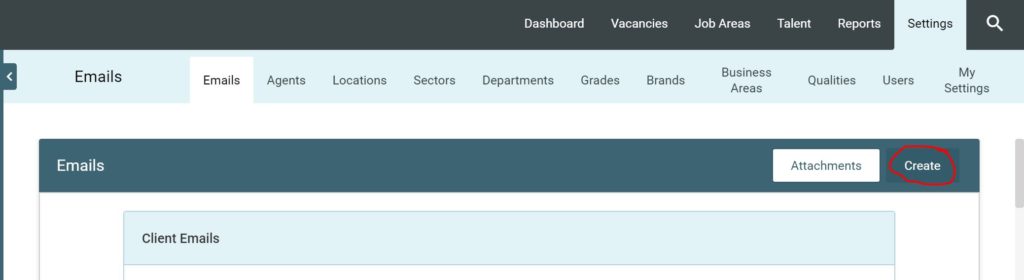
Your emails can be attached to a ‘Workflow‘ Stage or can be sent to a candidate via the candidates application area.
System Emails
The system has a standard email suite of communications that are sent out to candidates, authorisers, line managers, people associated with appointments and agencies.
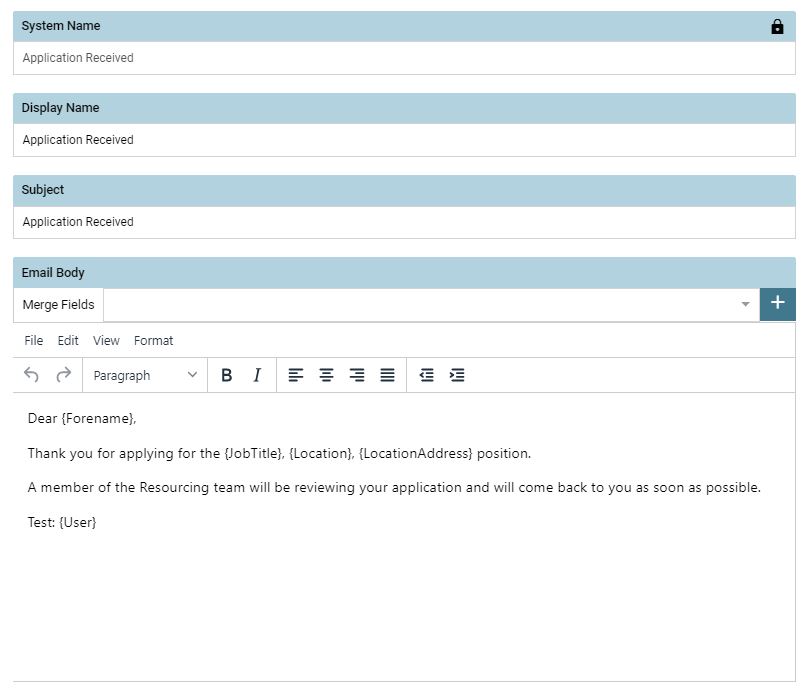
Users can edit the title of the email that will be sent to the candidate [Display name] and the [Subject] and the body text.
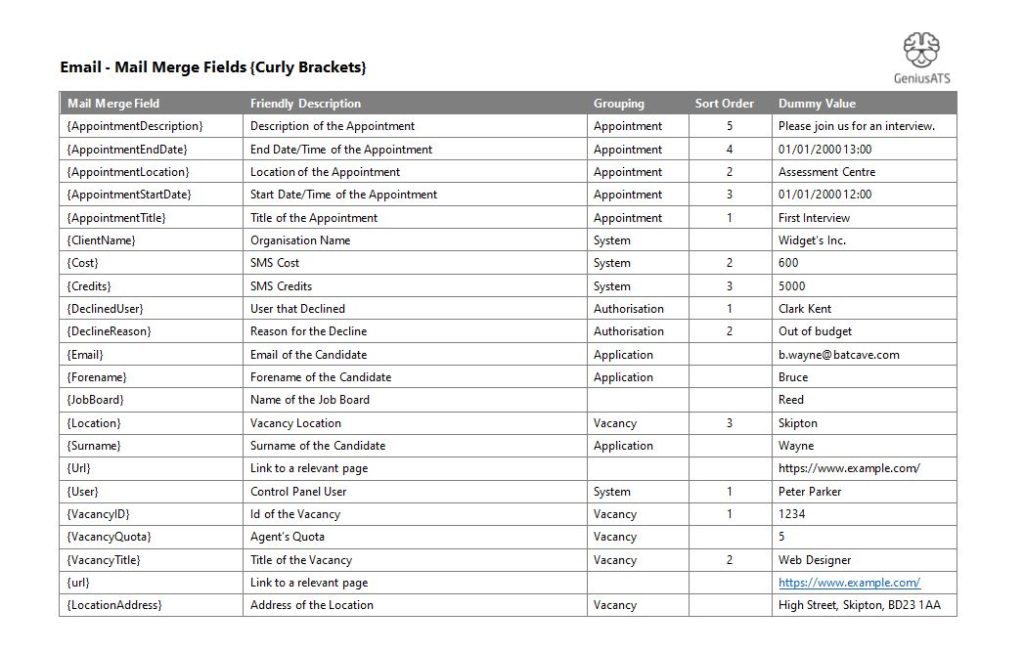
Users can also edit the body of the email to suit the company ‘tone of voice’. The standard suite contains basic information and instructions in each email along with {mailmerge} fields which allow the system to pull through relevant information into the body text of the email.
Here is a list of standard {mailmerge} fields:
NOTE:
The system email templates are designed to be sent out at specific times throughout the recruitment process and therefore the emails must associate to a stage in that process to assign e.g, {AppointmentDescription} otherwise the mailmerge field will pull through empty.
Mailmerge fields are cases sensitive so must match exactly for them to work in the email suite.
Field Limitations
- Display Name limited to 50 characters
- From Email limited to 100 characters
- Subject limited to 100 characters