From: Genius, Client Services Team
Today’s Date: 21st January 2026
Release Date: 26th January 2026
Overview:
The following universal changes/fixes to the Genius IQ Applicant Tracking System Software have or are to be deployed as per our development roadmap / schedule.
GIQATS-128 – Skills Based Assessment
It’s finally here!!!!!!
Want to avoid AI CVs? The functionality to help recruitment is now here. Skills-based assessments have been formulated as a solution for your recruitment needs. A timed assessment with specific questions based on the role you’re recruiting for, with clear scoring showcased in the control panel so you can review your candidates with ease.
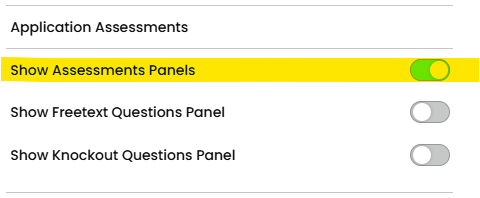
Firstly ensure you have the right permissions:
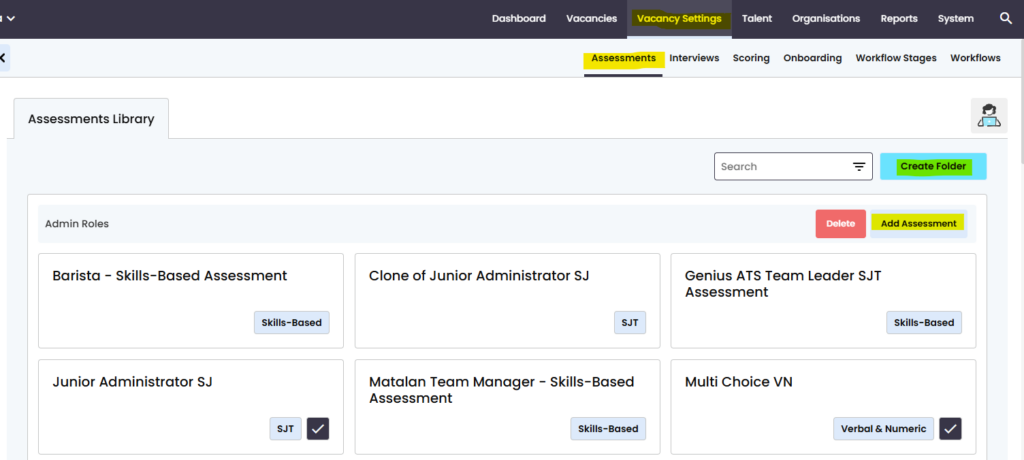
Head to Vacancy Settings > then assessments > create folder
Here, if you haven’t already, you can create folders for different roles. Within each folder you have the option to create an assessment, specifically in this case > SKILLS BASED ASSESSMENTS.
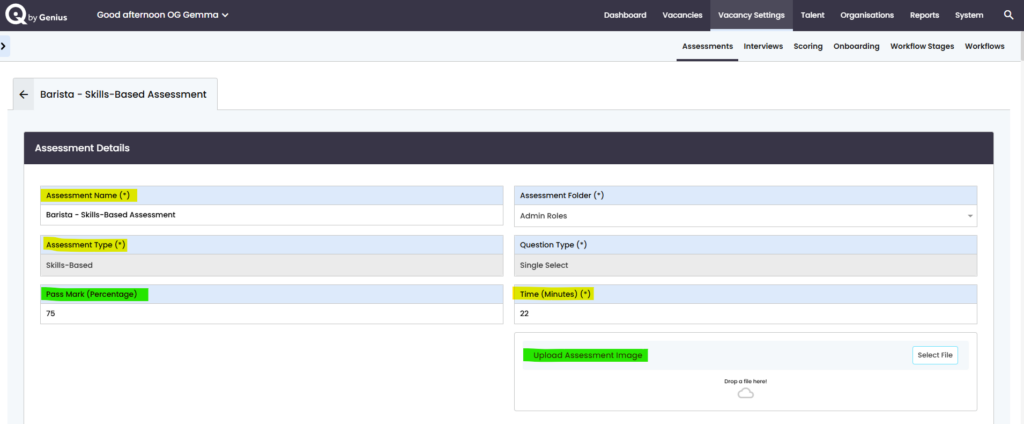
As a standard (highlighted in yellow) you must give your assessment a name, this is to select in the vacancy template/new vacancy. You must select an assessment type. If you select skills based single select will automatically populate in question type. You must also select the time, which is the overall amount of time that you’re giving the candidate to complete the questions you give.
Optional (highlighted in green) however we recommend you add to your assessment. Pass mark to highlight whether they meet your minimum requirements. Uploading an assessment image will add more engagement for the candidate to encourage them to complete the assessment.
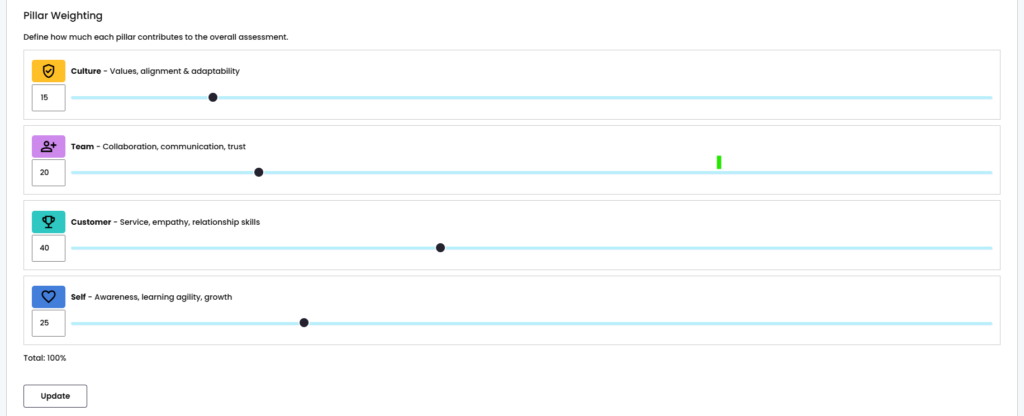
Four Pillars – after decades of research, learnt knowledge and experience we have defined the questions based on four pillars Culture, Team, Customer and Self. You will need to weight the score of the priority based on the role. It is weighted out of 100 and you can mix and match dependant on what is more important to the role, like the below:
You then need to create the questions based on the role; relevant to the pillar. You can add multiple questions in the relevant pillar and also add multiple answers for the candidate to select. There must be at least one question per pillar. Always save your question as you create your assessment.
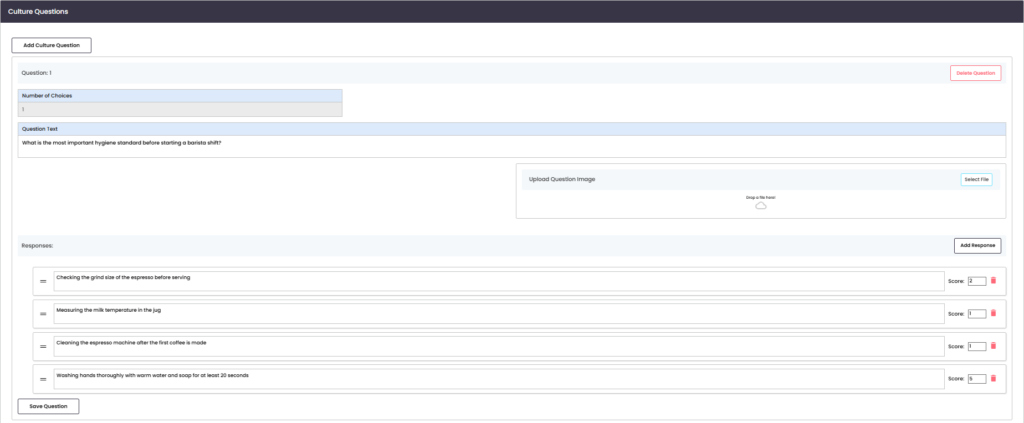
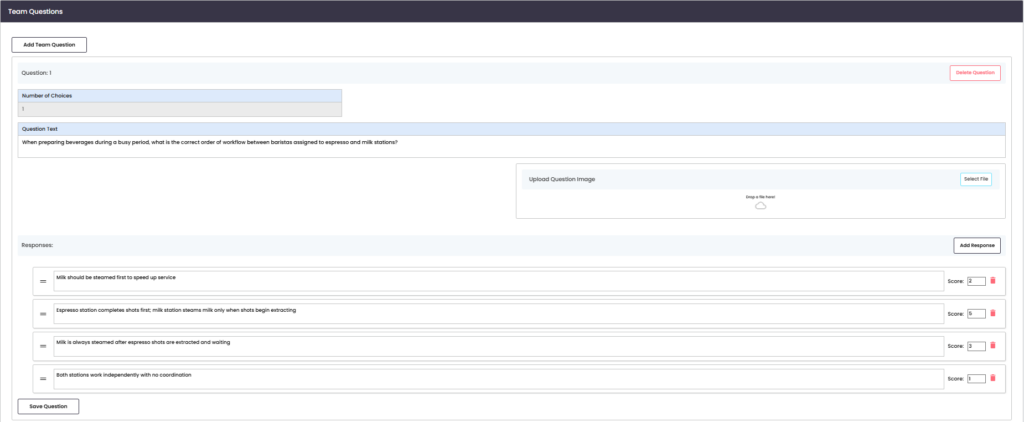
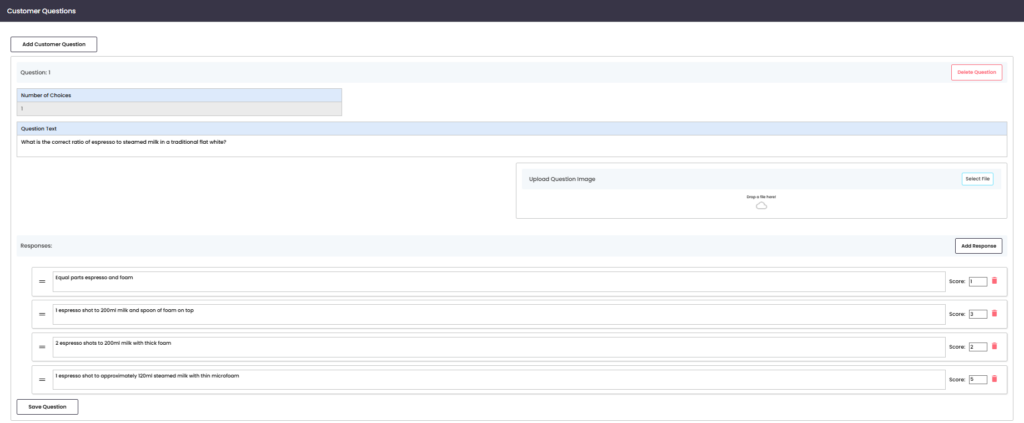
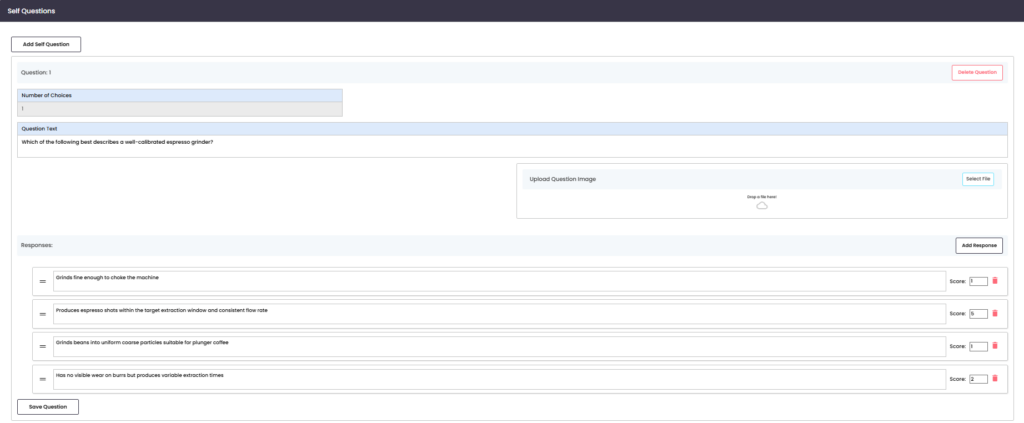
Example questions per pillar below:
Culture
Team
Customer
Self
When you are happy with your assessment click [Complete Assessment] at the end of the bottom of the assessment.
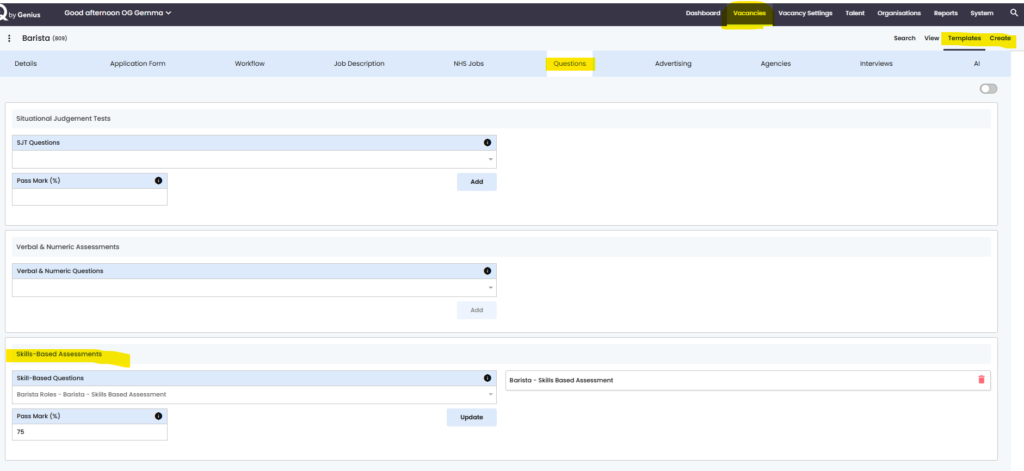
For the candidate to complete the assessment you have created, you must select the relevant assessment in either the vacancy template or new vacancy. You must go to the questions tab > Skills based assessment. You will only be able to select one skills based assessment per vacancy.
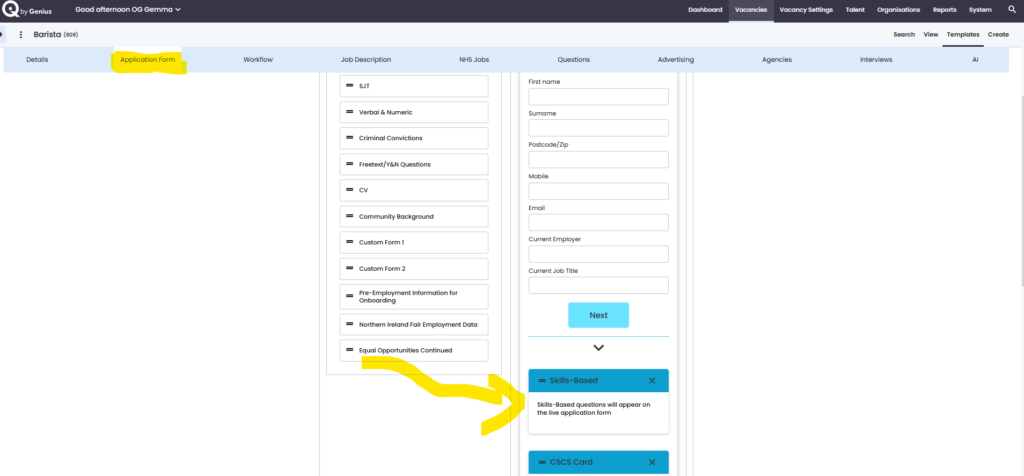
You will also need to drag and drop skills based section for the application form otherwise the assessment won’t appear on the front end for the candidate to complete.
Completed application
When the candidate has completed the assessment they will appear in the New Workflow, there will be multiple options to see
- A full completed assessment where they have been scored on all questions answered
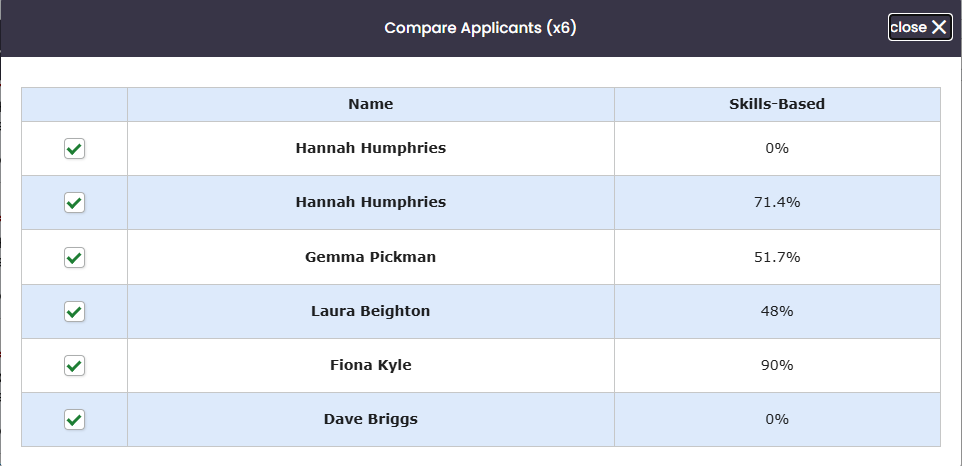
- The candidate has not completed the assessment in time or may have had an issue whilst completing the assessment – where 0% will be displayed
- A candidate where they may have a disability – where a warning sign will be displayed
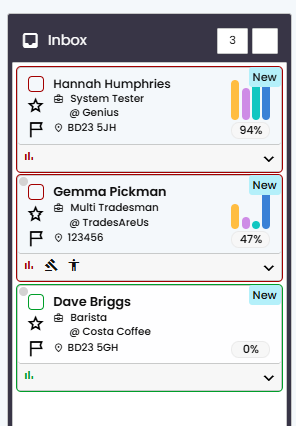
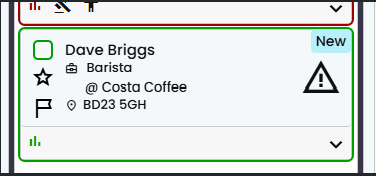
When in the workflow you will have the option to compare the candidates, example highlighted below
Candidates with a disability
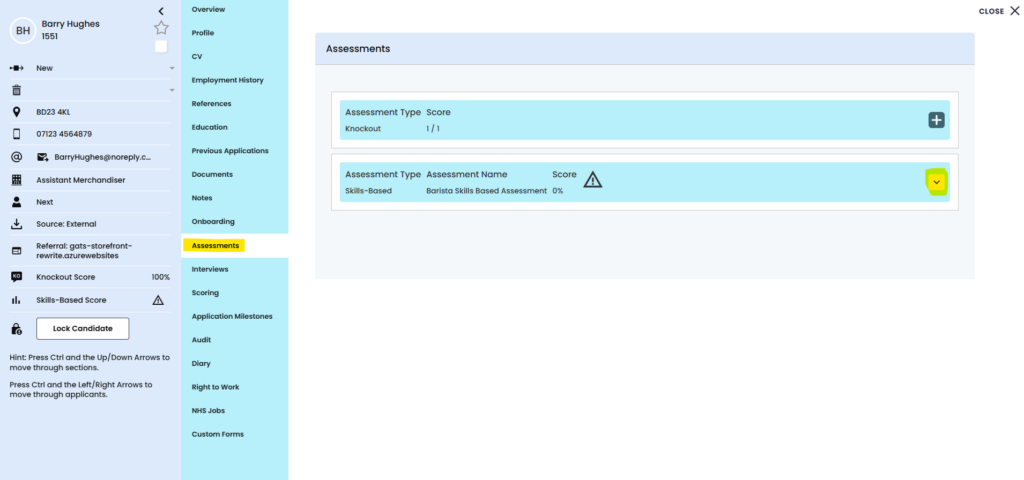
If the candidate does have a disability, you have the option to assist the candidate by scribing the assessment over the phone. Click on the induvial candidate and view the candidate profile and go to assessments where there is an arrow to click
When the section opens up there is an option to click a button for [Complete for applicant]
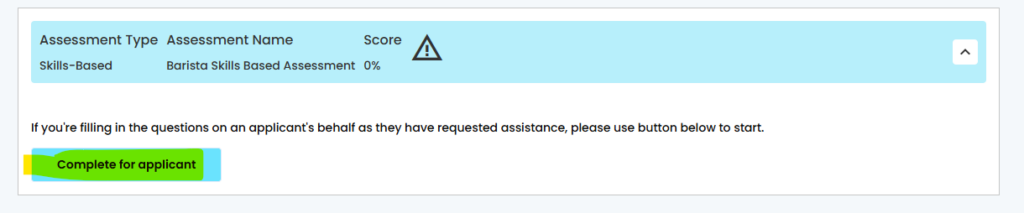
When you click the button it will open up the questions for you to complete with the candidate, click save answer for each question asked
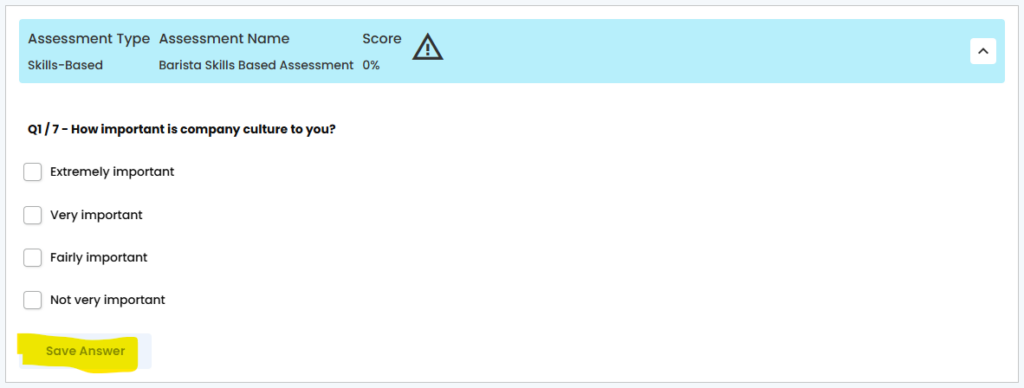
Once the last question has been asked the section will close and the score will appear

Front end View
Once you have registered you can apply for the role for the relevant details the below process is for the candidate.
- They can either start the process
- or opt for the option with a disability
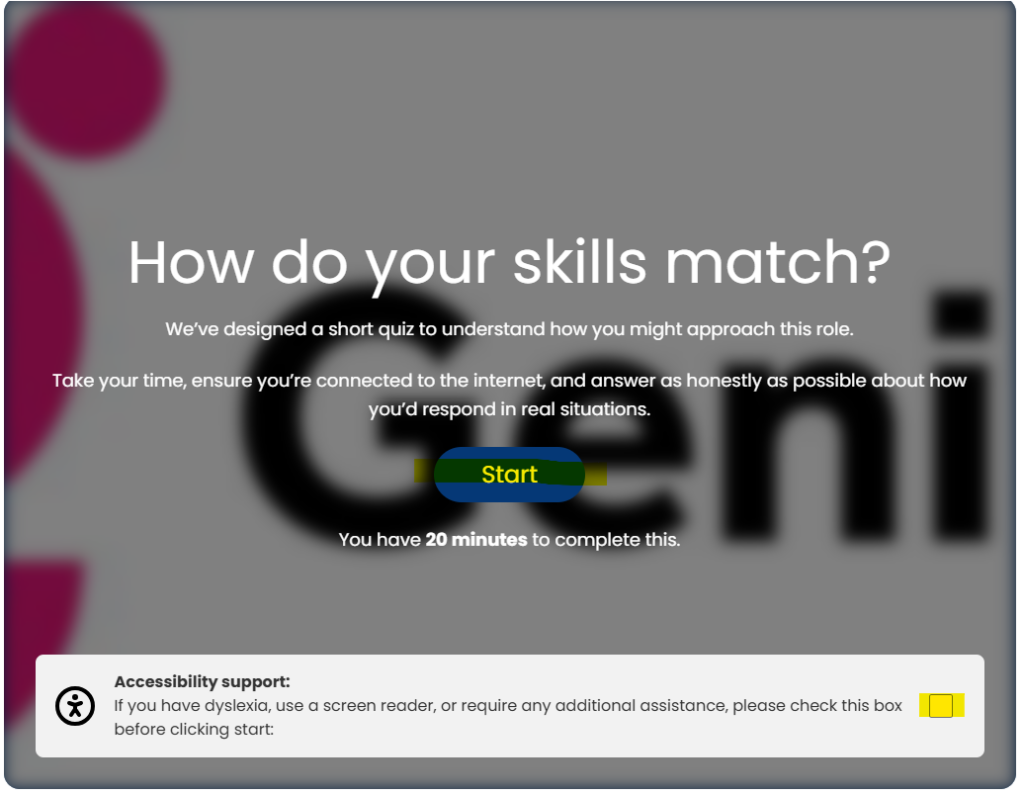
It starts with a few instructions, the candidate just needs to click [Start]
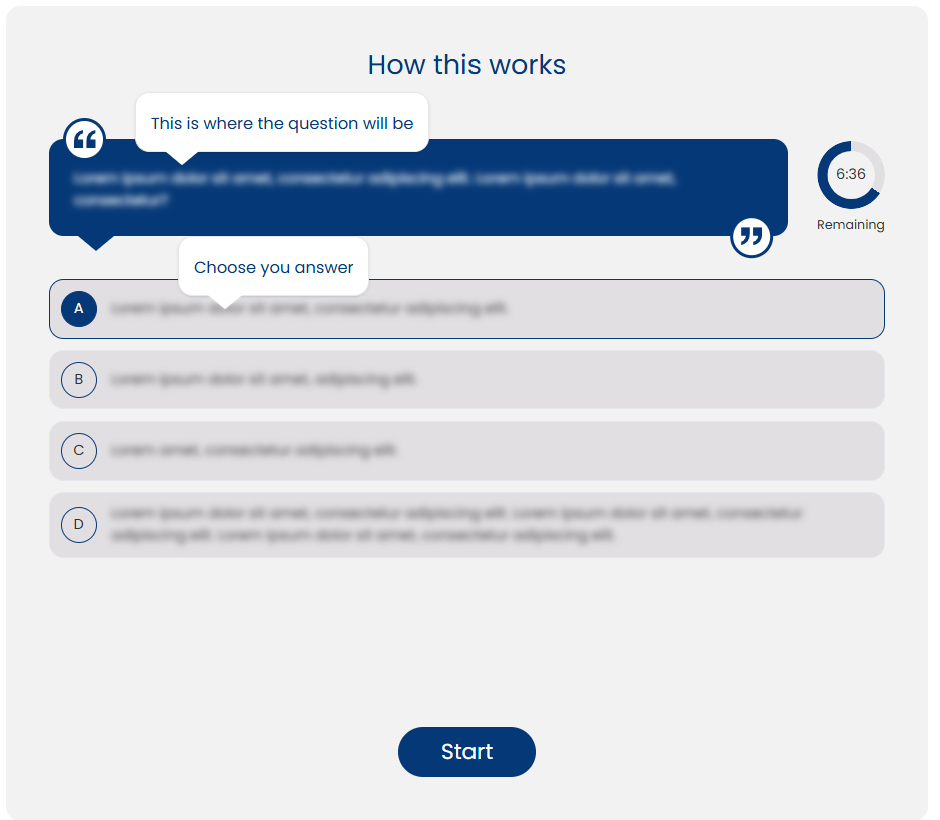
Then begins under the timed skilled based assessment.
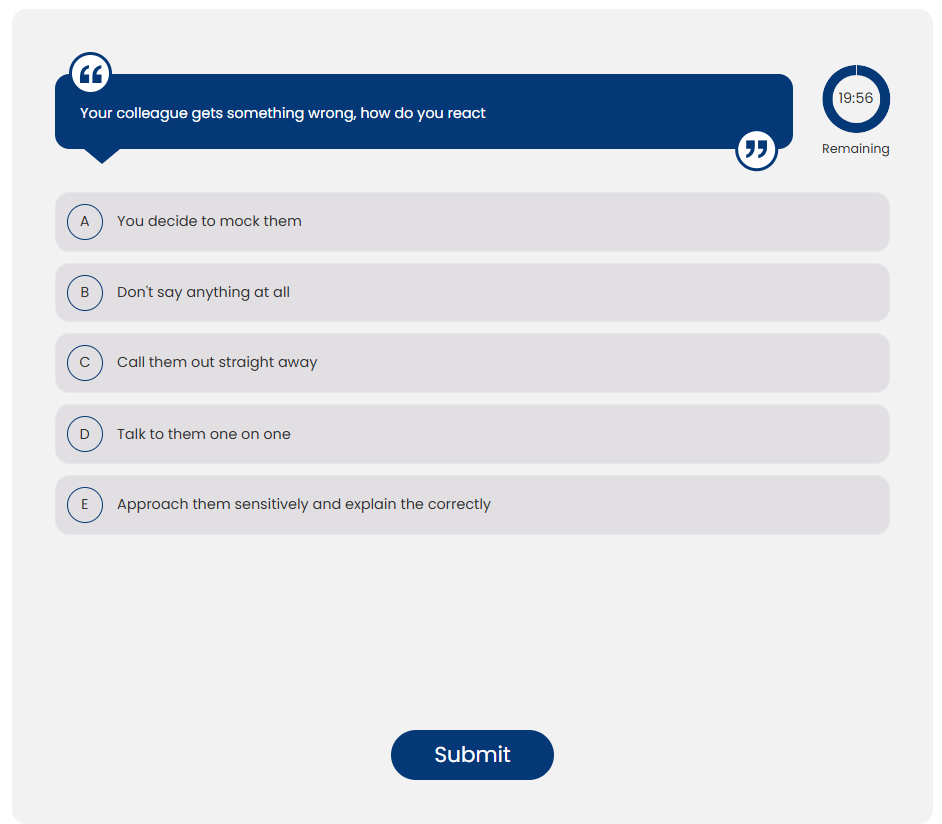
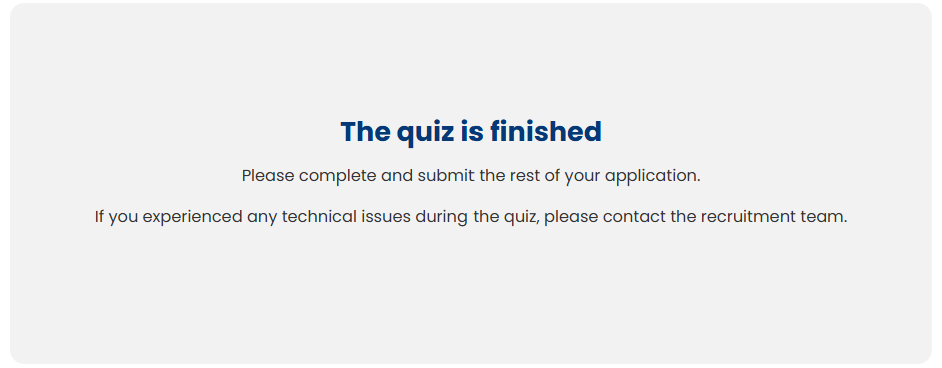
Once completed they will be advised and asked to either complete with their application or submit their application to continue.
GIQATS-129 Delayed Email In Candidate Audit (Application rejections)

In the instance where a ‘rejection email’ has been created with a 24hr delay delivery, you can now view the time/date scheduled to be delivered / or was delivered (if after the event).
Click into the candidate’s audit. Hover over the email in question and a pop up shows the due/sent date (example above).