Notice: Genius IQ > Bug Fixes & Developments Notice
From: Genius, Client Services Team
Today’s Date: 31st October 2024
Release Date: 11th November 2024
Overview:
The following universal changes/fixes to the Genius IQ Applicant Tracking System Software have or are to be deployed as per our development roadmap / schedule.
GATS-761 Microsoft Integration
The system has been integrated with Microsoft, it will give the ability to see YOUR Outlook calendar and place teams meetings into calendar invites if you use this in the system.
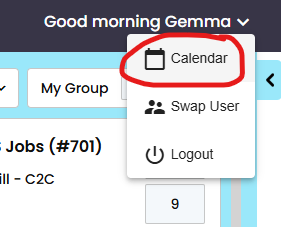
As a starting point you will need to select your calendar in the system. Once the screen is available ALL client (whether you use Microsoft or not), you will need to select the teams icon
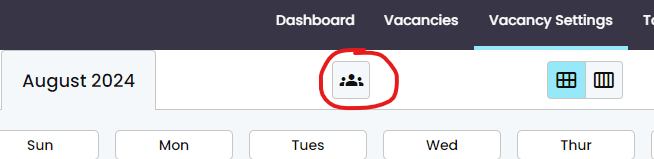
Once clicked this will open a pop-up with an authentication code (which is unique) you will need to copy the information and click the open Microsoft button
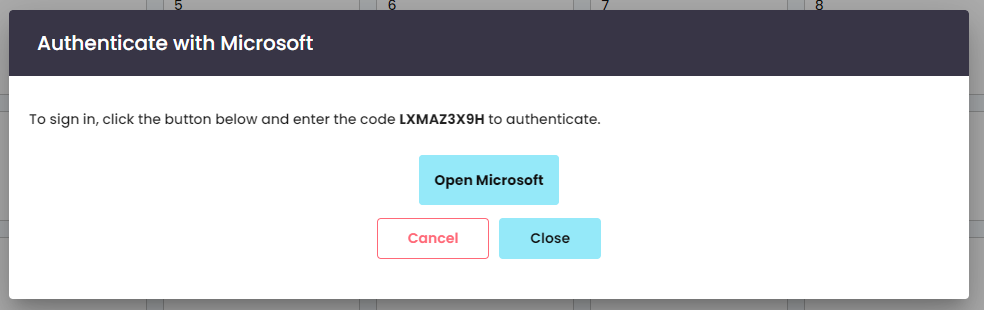
This will then open a new tab which is the Microsoft login page – this is where you will need to enter the code from the fist screen
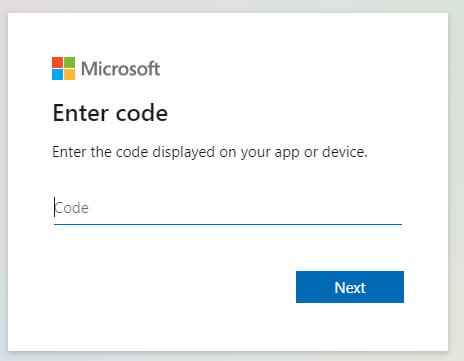
The Next screen will ask you to confirm your login details for your Microsoft account. Select the relevant email that’s associated to your Microsoft account
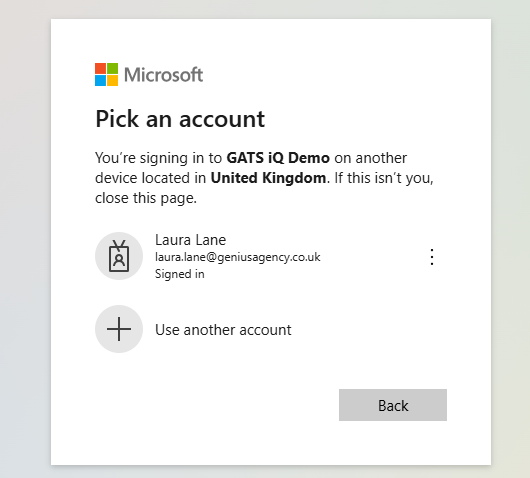
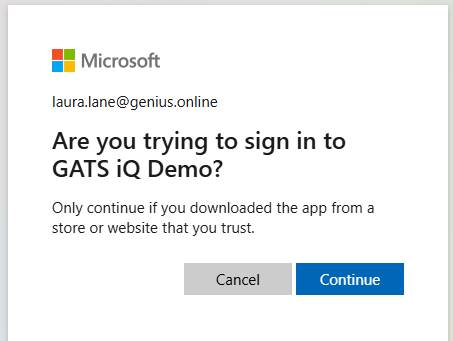
The next screen will ask you to verify the steps you are taking to confirm the information you need to pull onto the calendar, click continue.
NOTE: At this point your IT Team ‘may’ Need to approve it to connect with the system
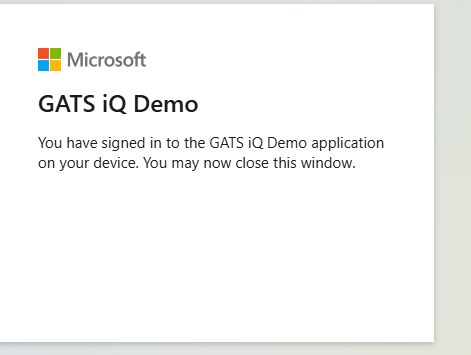
The next screen will then confirm you have logging in and you can close that screen
Go back to the holding screen where you were given your unique code and click close
The integration will then take a minute to a few seconds to load YOUR calendar into the diary area
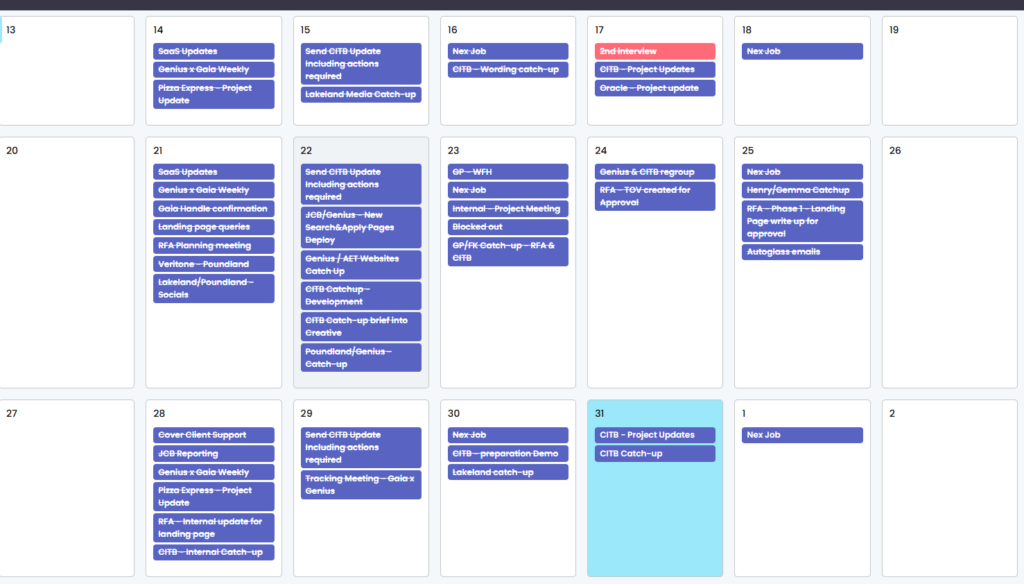
To be able to allocate a teams invite Firstly you must create the calendar invite, this is completed in the vacancy itself so you can add the candidates to the invite. Once created you will be able to see the invite you have created within the system
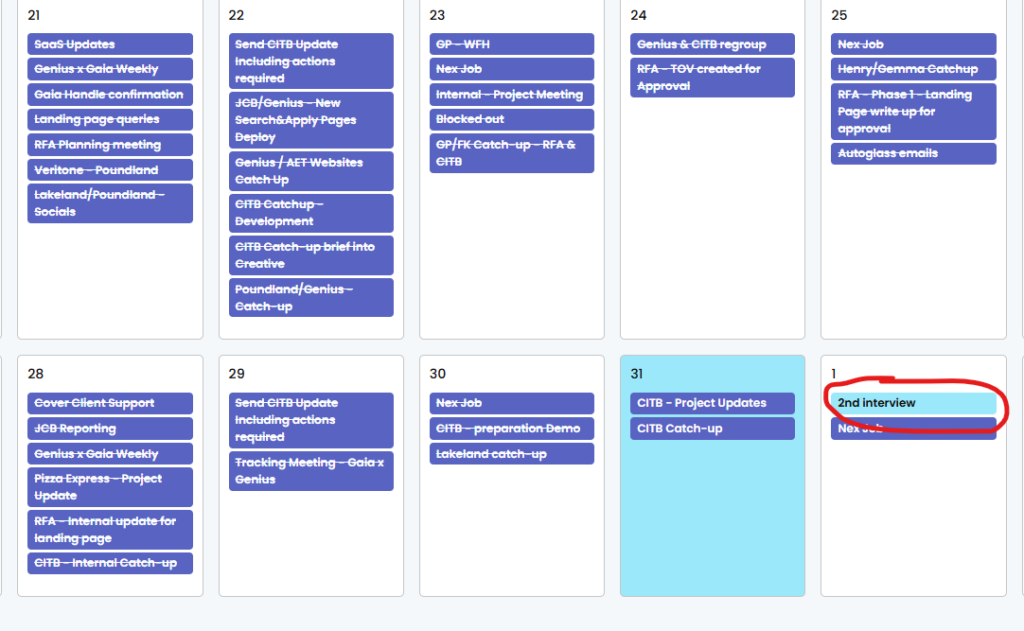
Click the calendar invite which will open a pop up where you can select the pen to be able to edit
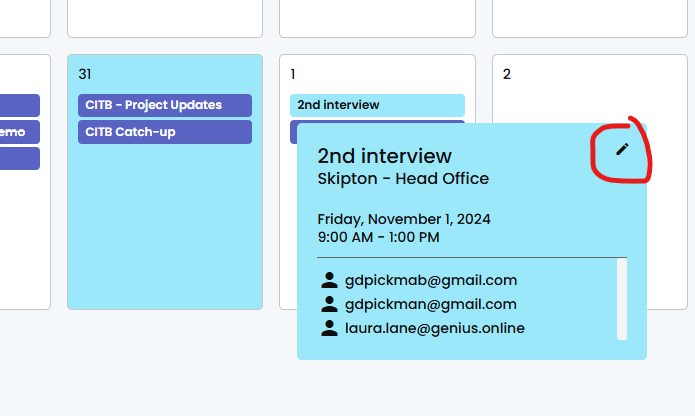
When you have clicked the appointment you a window will appear with the information of the invite, from here you can edit the information cancel and ‘Add to teams Calendar’, if you click the add to teams calendar button it will ask you to [CONFIRM]
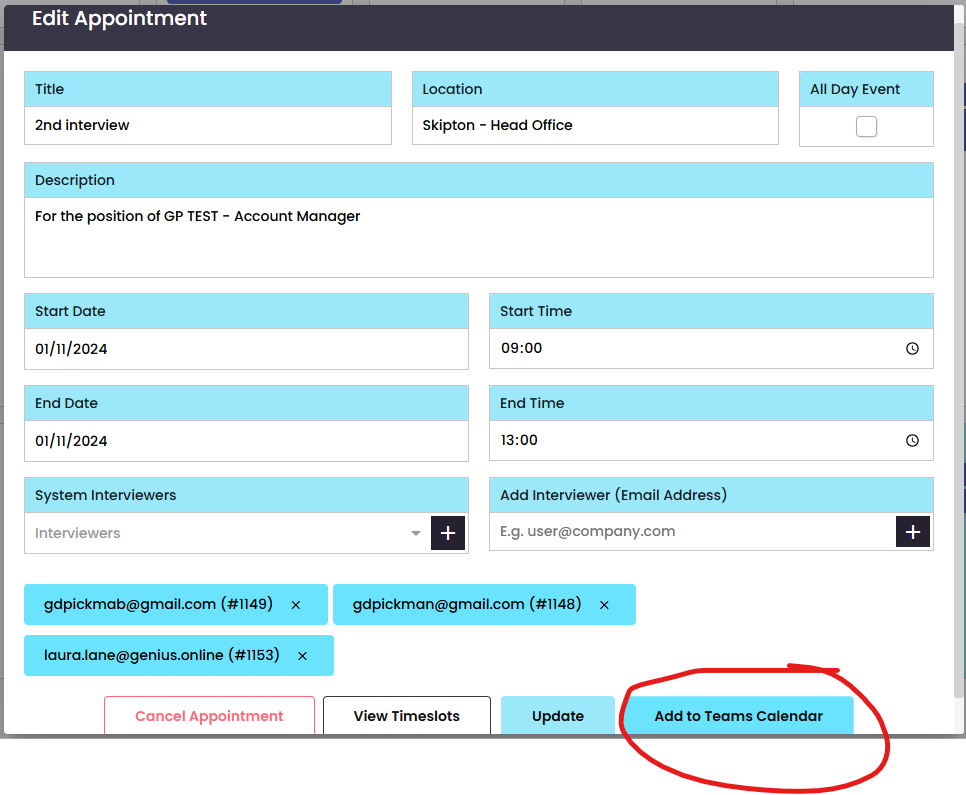
Once confirmed a little pop up appears to confirm it is successfully added to the calendar

The Teams invite will then appear in the description of the invite, you will then need to click the [UPDATE]

Once confirmed it will create the teams calendar invite and add it to your diary.
NOTE: it will appear twice as one is the ATS calendar and one is the teams calendar. also you will only be able to view your teams calendar and not edit like you can with the ATS calendar.
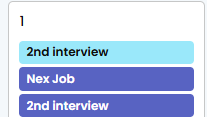
TOP TIP: if you have logged out of the system and then back into the system you will have to click the teams button again for your calendar to appear. However because you have gone through the integration process, they will automatically appear.
NOTE: If you have you calendar appoints stretching over more than one day, this will not appear on the calendar. The ATS calendar does NOT have the viewing capability over more than one day