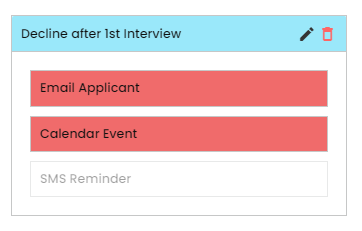
Workflow stages are the individual ‘progress’ and ‘decline’ stages that are created separately and then added into a workflow, which is a number of stages starting with the standard [New] workflow stage and ends with the standard [Appointed] stage.
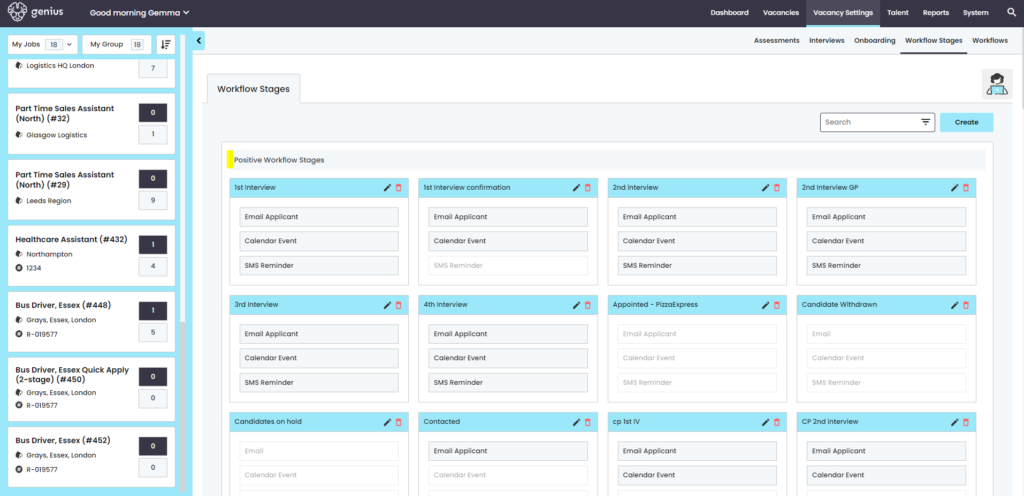
In a workflow, there are the following standard system cells which have pre-defined actions associated.
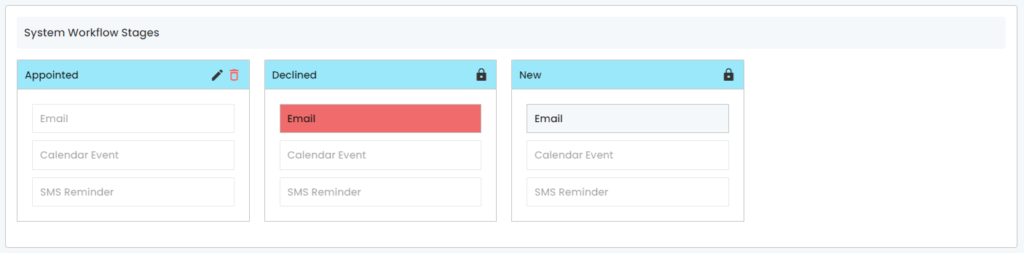
Standard System Workflow Stages
The system has 3 standard workflow stages:
- New
- Offer
- Appointed
New – All new applications are set to this stage
Offer – The Offer form has an ‘authorisation’ process built-in which is linked to the vacancy Audit – This is an optional stage.
Appointed – Candidate has complete the process, has accepted an offer and is joining the business
Creating a Workflow Stage
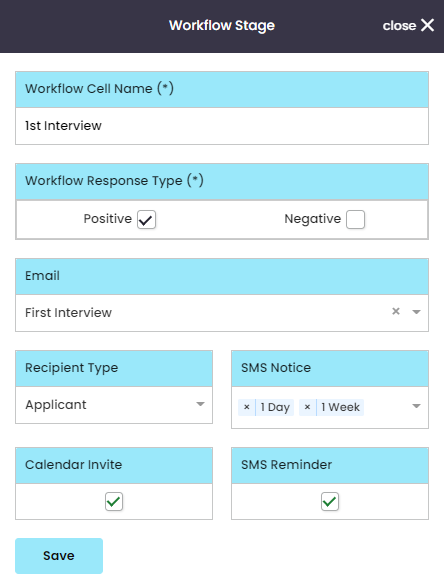
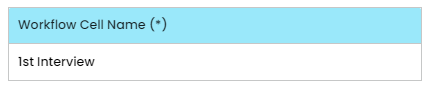
Workflow Cell Name
When creating a new cell, give the ‘stage’ a title
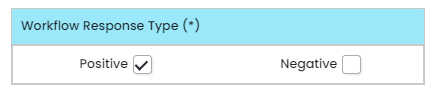
Workflow Response Type (Progress / Reject)
Choose if the workflow cell is a ‘positive’ stage (progression), or if the workflow cell is a ‘Negative’, or a reject at stage type.
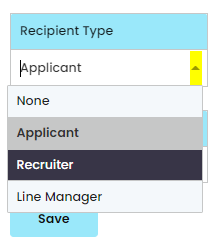
Recipient Type
The recipient of any email communication should be selected from the ‘Recipient Type’ dropdown menu.
If ‘none’ is selected, then no communication is sent at that stage.
Applicant, Recruiter or Line Manager can be selected to receive an email communication. The emails selected are to be created and available from the email area of the Control Panel.
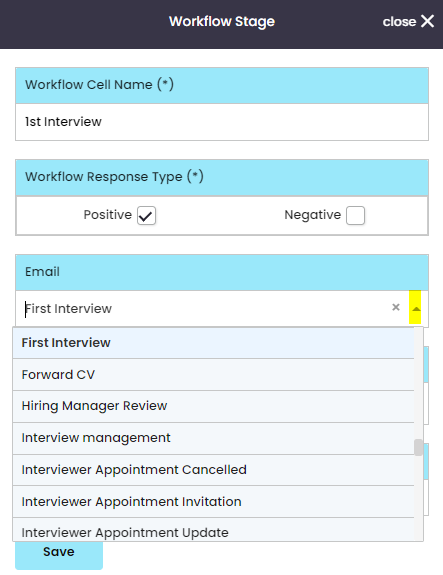
If the workflow stage is created to send an email communication to a recipient, choose the email template.
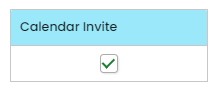
Calendar Invite
If the workflow stage requires an appointment creating for (e.g. an Interview), then tick the box to invoke an appointment when a candidate is moved into this workflow stage.
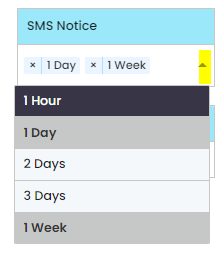
SMS Reminder & Frequency
Set an SMS reminder as part of this workflow stage and the frequency that the reminder should be sent to the recipient
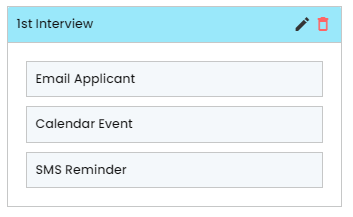
Once all of the areas are complete, click [Save] and the workflow cell will appear in the Positive or Negative area on the workflow stages page
Progress workflow stage will show as:
Decline Workflow stage
Create the stage (as above) and the workflow stage will show as: