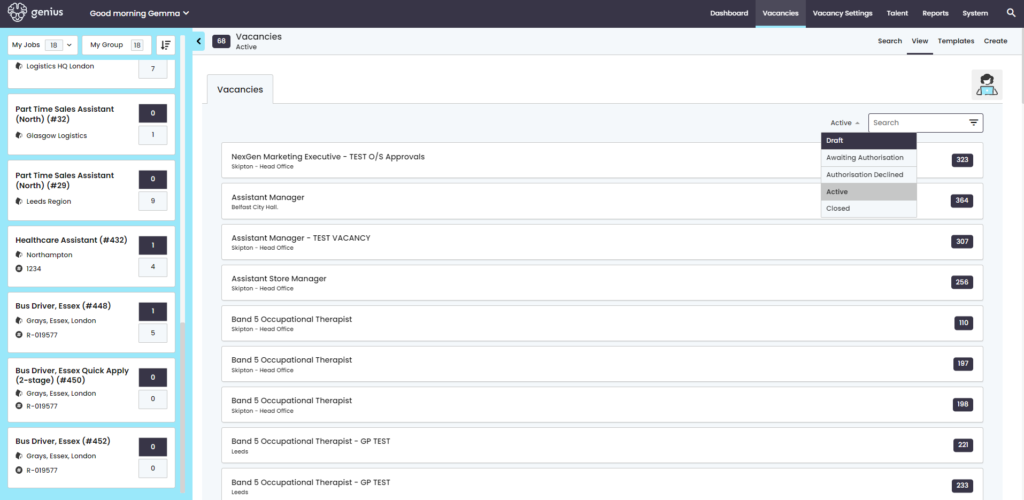
If authorisation is required as part of the process of launching a vacancy to the live environment, the settings are configured in the control panel within the vacancy template on a role by role basis.
NOTE: If authorisers are added to a vacancy template, then any user with permission to raise a vacancy from a Template will not be able to change the names in the list or the authorisation type
In the [Details] tab, add the ‘Authorisation Type’:
- Chain = an email will be sent in sequential order to the list of authorisers. Only when ALL have approved the vacancy will it be launched in accordance with the advertisement dates set in the template
- Parallel = an email will be sent to all authorisers at the same time. Only when ALL have approved the vacancy will it be launched in accordance with the advertisement dates set in the template
- Override – no authorisation process required. NOTE: There must always be a ‘reason’ when this type is selected
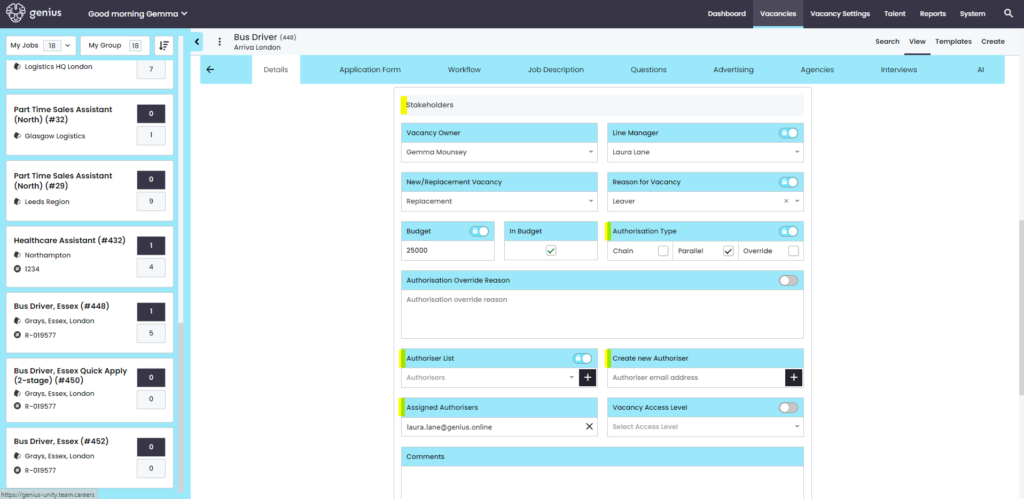
Add the Authorisers in the ‘Assigned Authorisers’ list by adding system users from the dropdown ‘Authorisers List’ or manually by adding an email address into ‘create new Authoriser’ and clicking the [+] button.
Remove Authorisers from the list by clicking the [X] against the name
All vacancy ‘Authorisers’ can be found and manged via the ‘Users’ page under the [Authorisers] tab

NOTE: The wording of the email can be managed in the email templates suite – however, the link [Review Vacancy], should not be altered as this automatically creates a URL to the vacancy being requested
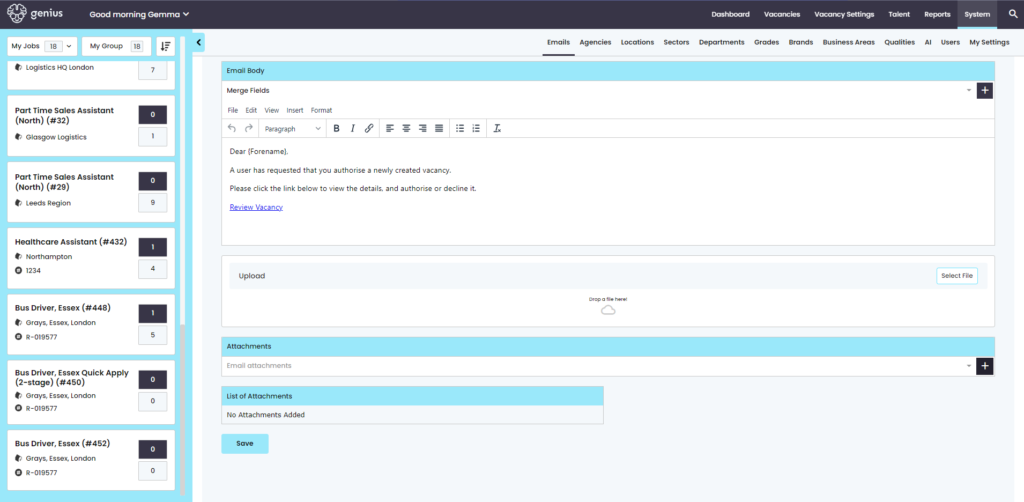
The request will be sent to the Authoriser(s) via email to review.
Example:
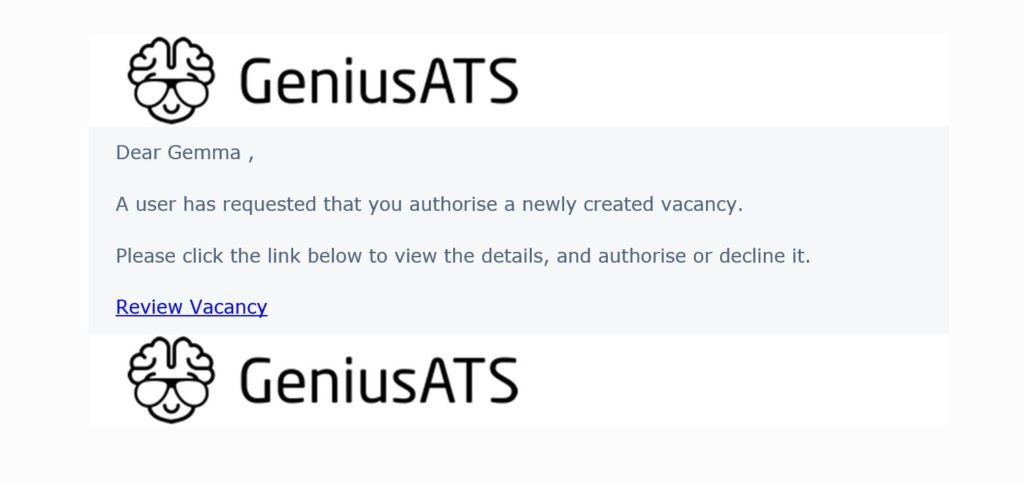
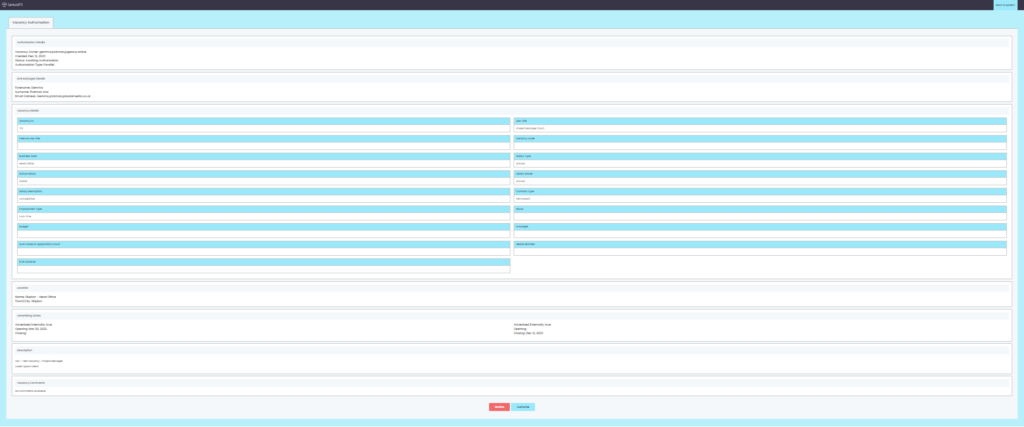
The email contains a link to the authorisation page for the vacancy. Here the authoriser is able to review the details and [approve] or [reject] the vacancy.
Authorise – a pop up will appear to confirm – click the correct action to progress or return
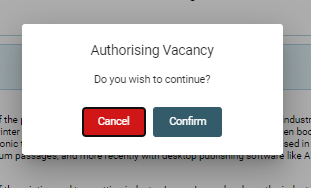
Once Authorised, the vacancy will appear in the search pages according to the advertisement dates on the vacancy
Decline – A pop up will appear to confirm – here if you are declining the vacancy request you will need to add in a reason
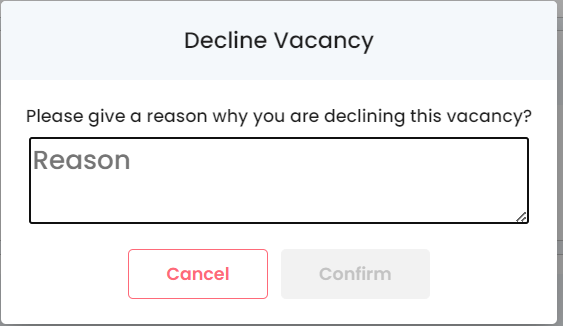
Declined vacancies can be found in the Vacancies > Search area: