FOR NHS CUSTOMERS ONLY
Some of the information added into the [Details] and [Job Description] tabs is or can be automatically pulled through to the [NHS Jobs] tab to prevent duplication.
The information that comes through applies to the following fields:
- Documents
- Contract Type
- Location(s)
- Job Summary
- Main duties of the job
- About us
- Job Description
Add your vacancy documents using the [Job Description] tab, these will pull through into the [NHS Jobs] tab.
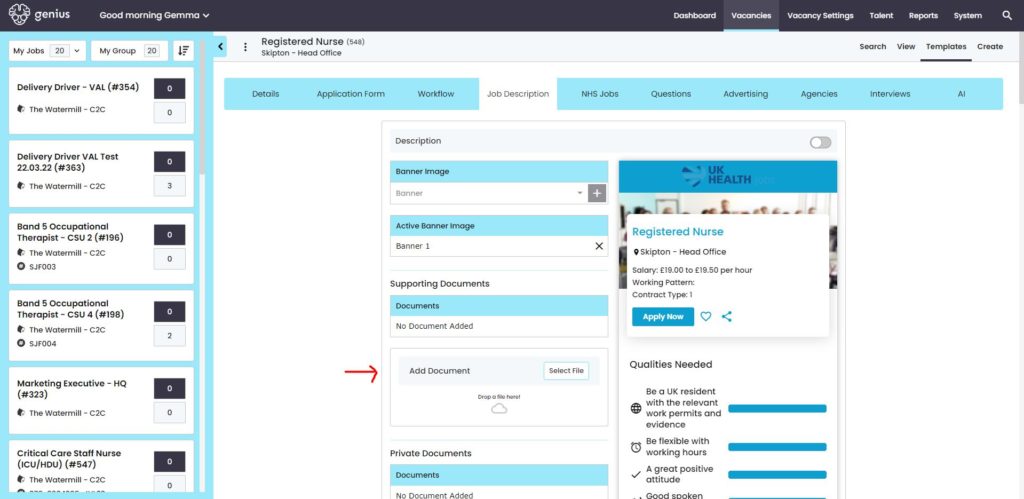
By using these specific titles the ATS knows to pull the section into the NHS Jobs Tab to support the NHS Jobs vacancy template requirements:
- Job Summary
- Main duties of the job
- About us
- Job Description
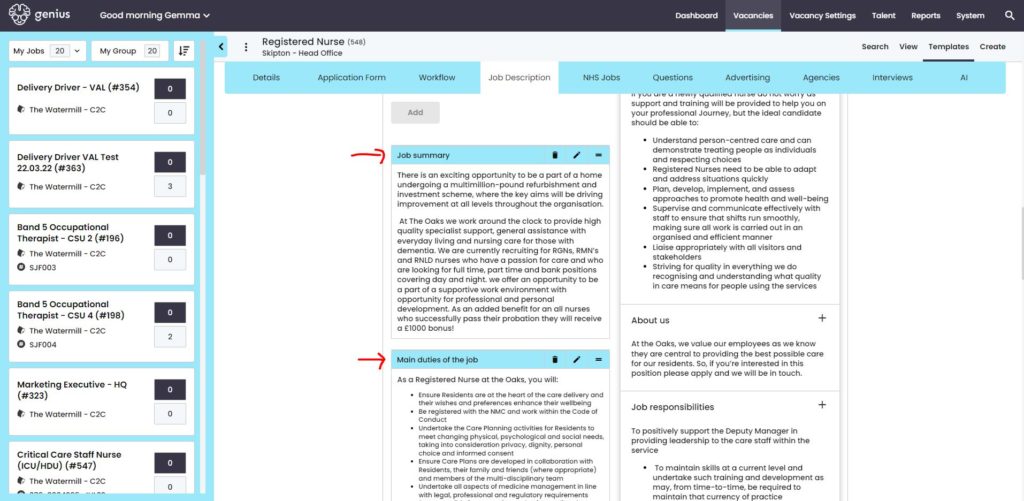
Guidance notes are provided in the NHS Jobs tab
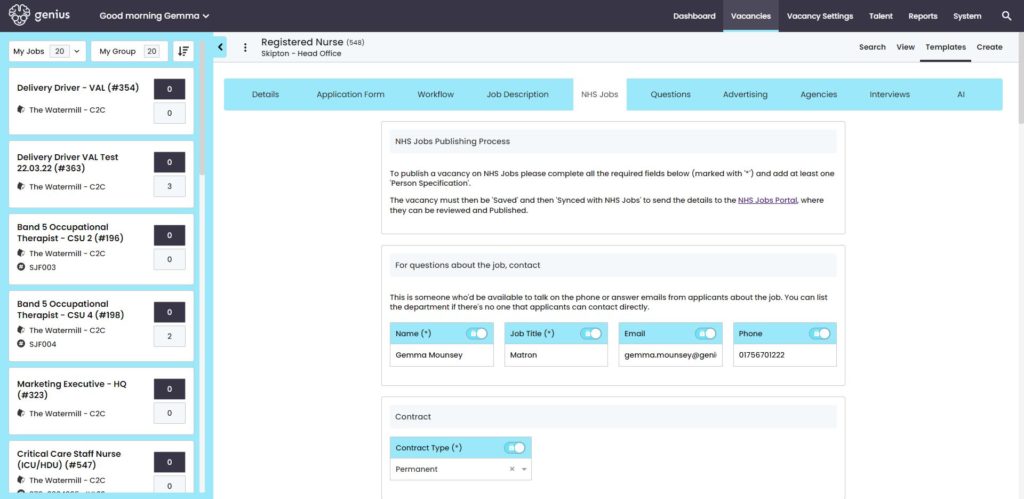
Complete all of the sections as required to complete the vacancy.
For vacancies with an Authorisation process associated, when the [Launch Vacancy] button is clicked a request will be sent to the authorisers for approval.
IMPORTANT: The vacancy is not published to NHS Jobs at this point but may show on the ATS Search & Apply Pages when the external advertisement dates are reached.
Only when a vacancy has been ‘authorised’ can the user go into the vacancy and click [sync with NHS Jobs]. If this is successful, the [NHS Job ID] and [NHS Jobs Reference] numbers will show.
If there are any errors, correct these in the template and click [sync with NHS Jobs] again.
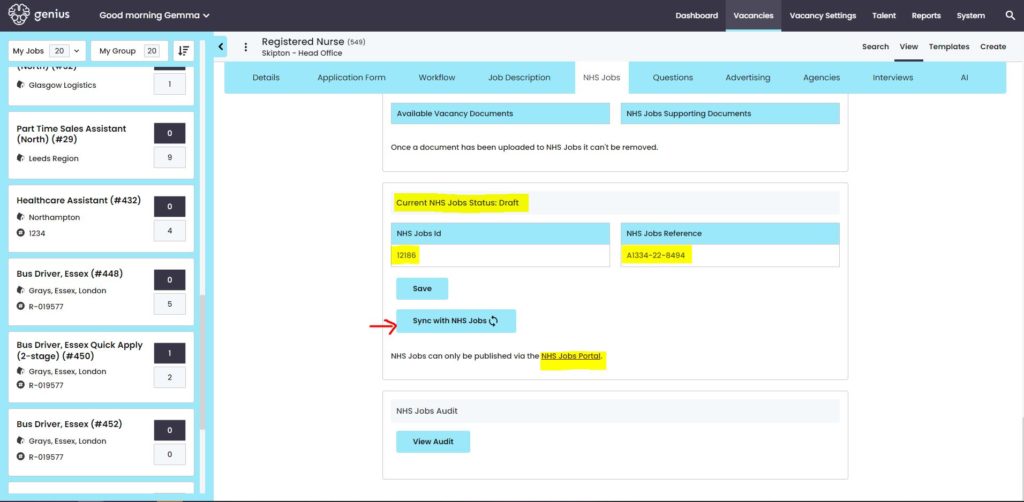
Publishing the vacancy in NHS Jobs:
The vacancy will be showing in your NHS Jobs dashboard as a ‘Draft’. Check the details are correct and ‘publish’ the vacancy.
IMPORTANT:
- If you change any of the details in NHS Jobs, this will NOT update your vacancy in Genius ATS.
- If you have added any documents in Genius ATS you cannot delete them
NHS Jobs support information:
- NHS Jobs Guidance
- NHS Jobs Help and Support for employers
- NHS Jobs Support Video
- NHS Jobs YouTube Channel
NOTE: Genius Group have no control over any functionality once a user leaves the ATS platform. NHS Jobs is a completely separate platform supported by NHS Business Services Authority.