System Users are now able to create an ‘Event’ in a similar manner to a vacancy. When creating an ‘Event’, use the existing vacancy template and tick the [Is Event] box. This allows the system to recognise that this is not a vacancy and allows you to tailor some of the sections within the [Job Description] area to create your ‘event’.
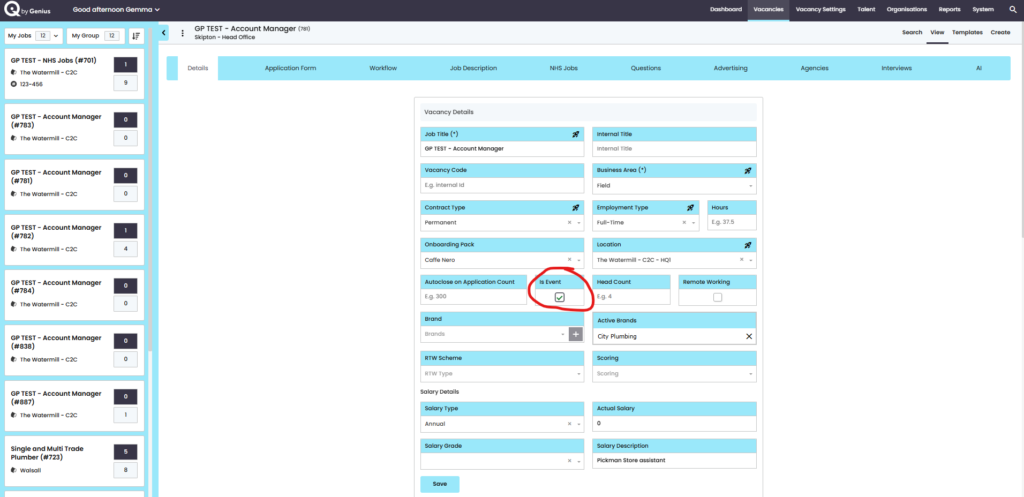
For the Event Description use the [Details] tab.
The mandatory fields are:
- Job Title: This should be the title of your ‘event’
- Internal Title: This should be the title of your ‘event’
- Business Area – You may need to add a new business area into the system to pull through into this area.
- Salary Type*: e.g. Annual / Hourly / Various
- Salary Description: Ranges from £16,000 to £25,000
- Employment Type*: FT / PT / Various
- Location – – Where are you holding the event? You may need to add a new location into the system to pull through into this area.
- Is Event – tick this box
TIP: *Mandatory items can be customised per customer. To update your dropdown options, Please contact: clientsupport@genius.online
Workflow
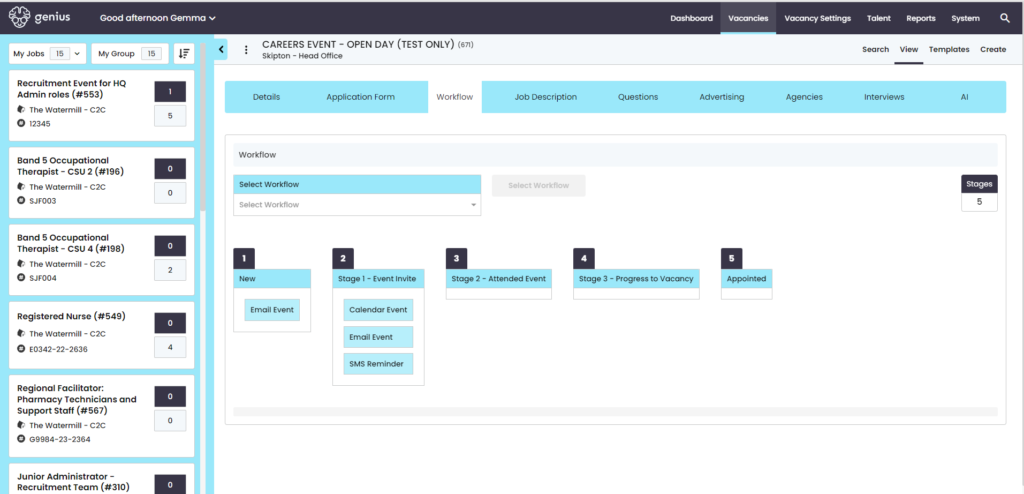
Users will need to create a new workflow for the Event, example below:
Tip: at each stage you can add a declined status – e.g. Did not show, Withdrawn..
Job Description
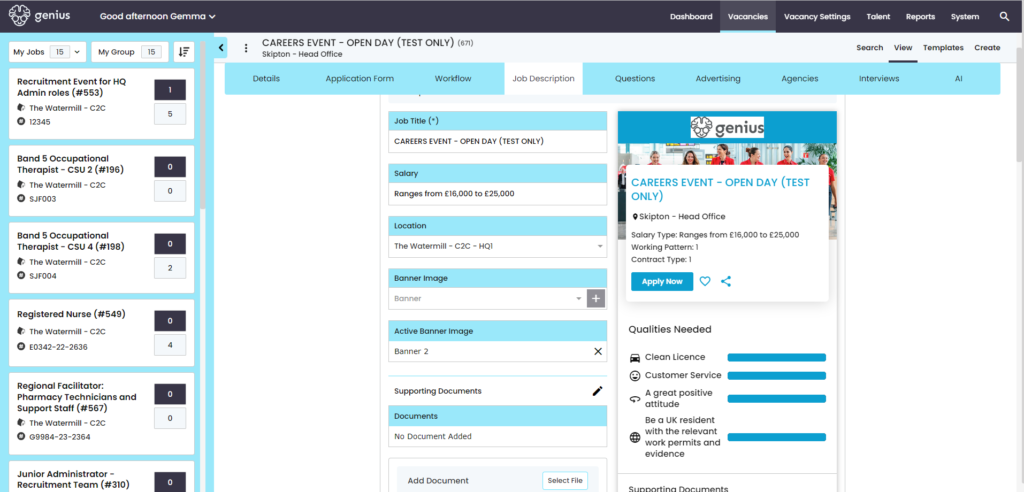
Here is where you can describe the event, add a video or document(s).
Tip: If you want to add a specific ‘events’ image for the banner of the advert you will need to provide an image to clientsupport@genius.online and we will add this into the dropdown for you.
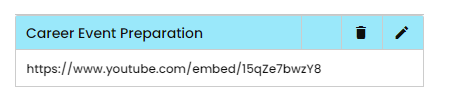
Videos: Here is an example of the URL to embed a video into the Event
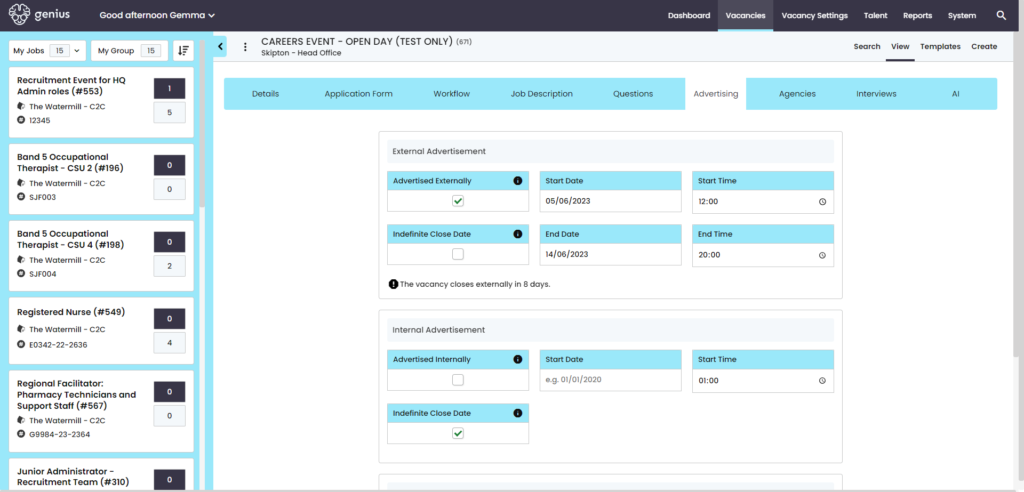
Advertising the Event
Add the advertisement dates start/end for people to register to the event
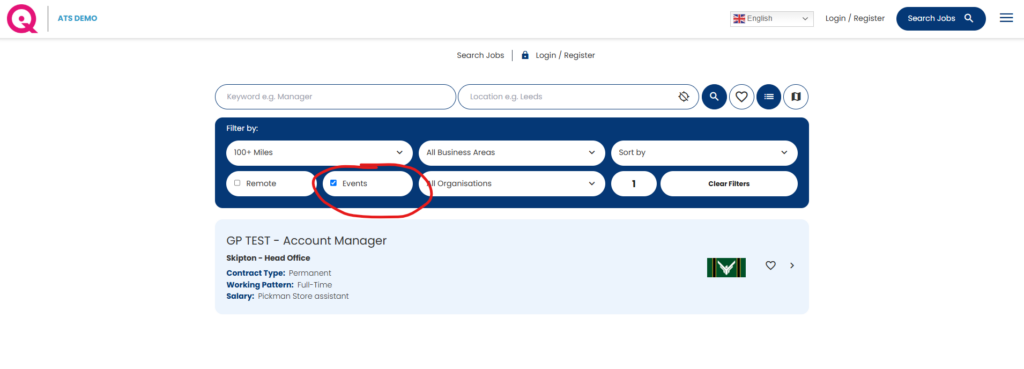
Events – Front End View
On the Search & Apply page, you can search for [Events] using the filter:
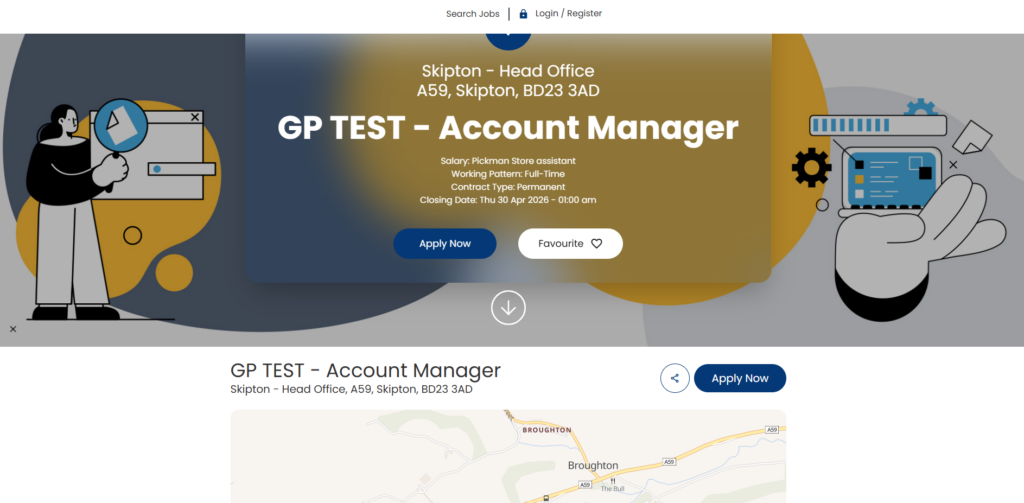
Example of the Event Advert: