The talent section allows you to search for candidates within the database, using an email address, a talent pool, distance, location or keywords.
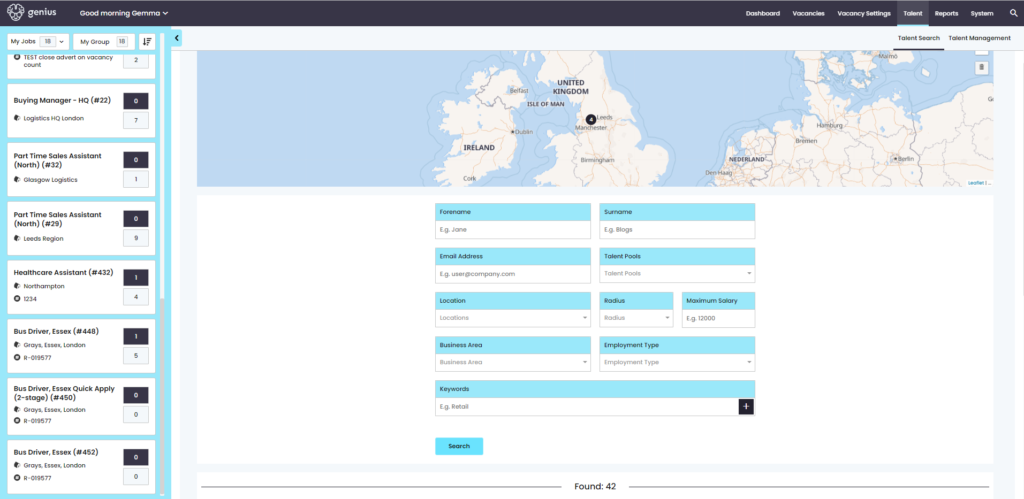
Talent Search
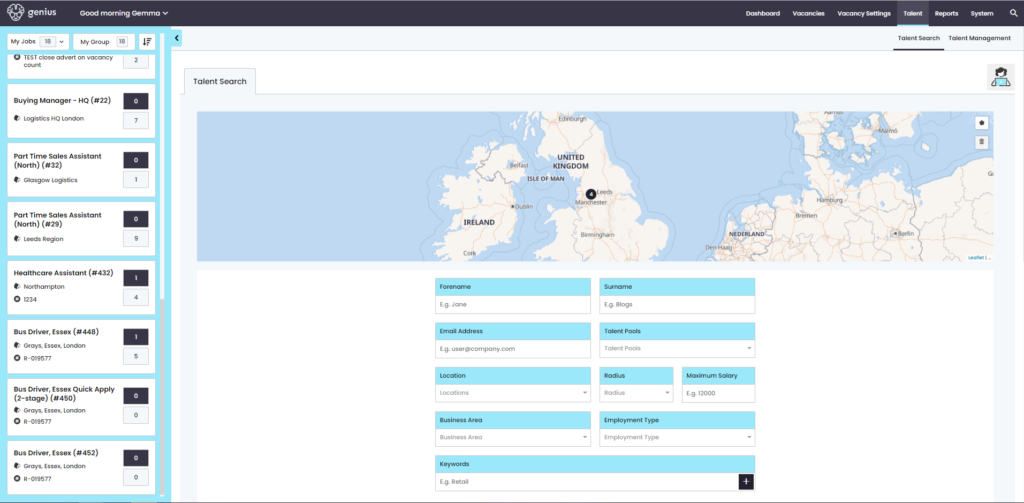
Search for candidates using an email address, a talent pool, radius, location or keyword.
Please note – The talent search is against users. So if an agency added candidate is on the system – they won’t show in the talent search.
Enter an email address and click [Search] to find the candidate in the system. Once located, their details will display under the search boxes;
Click [Options] to Add to Talent Pool, Add to Vacancy, SMS or Email.
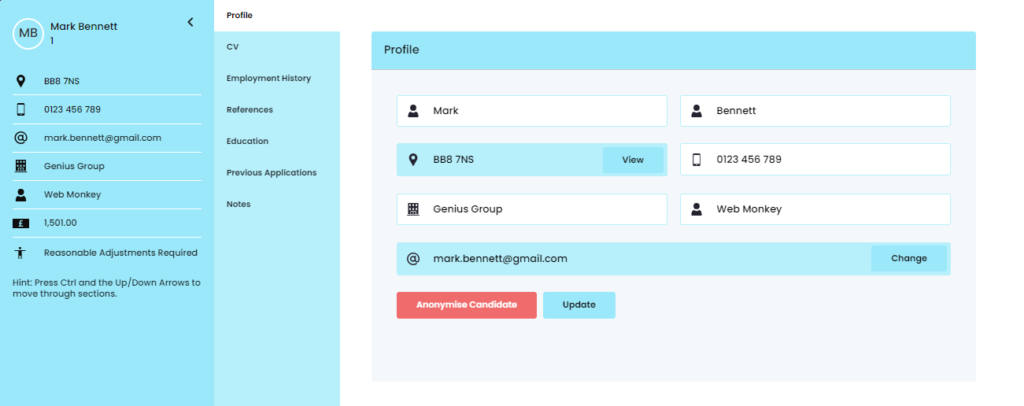
Or Click the candidates name to go to their profile where you can view, edit and update information, access their CV, see their Employment History, References, Education, Previous Applications or any Notes held against this candidate.
Talent Management
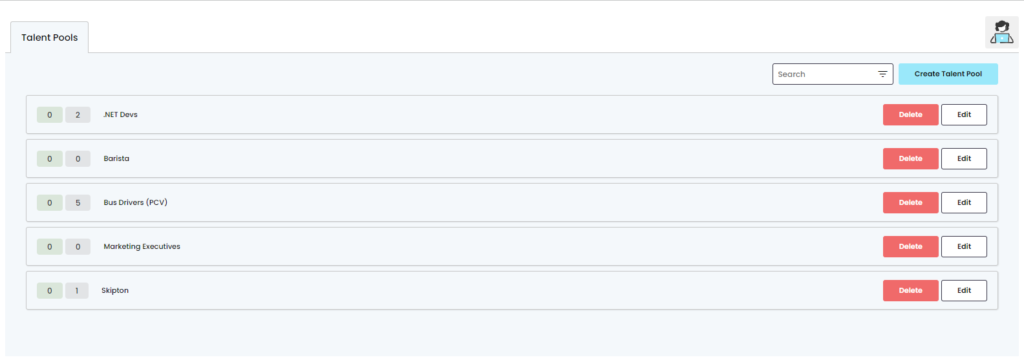
Within Talent Management you can create and manage your Talent pools. You can search and filter candidates based on their location and skills.
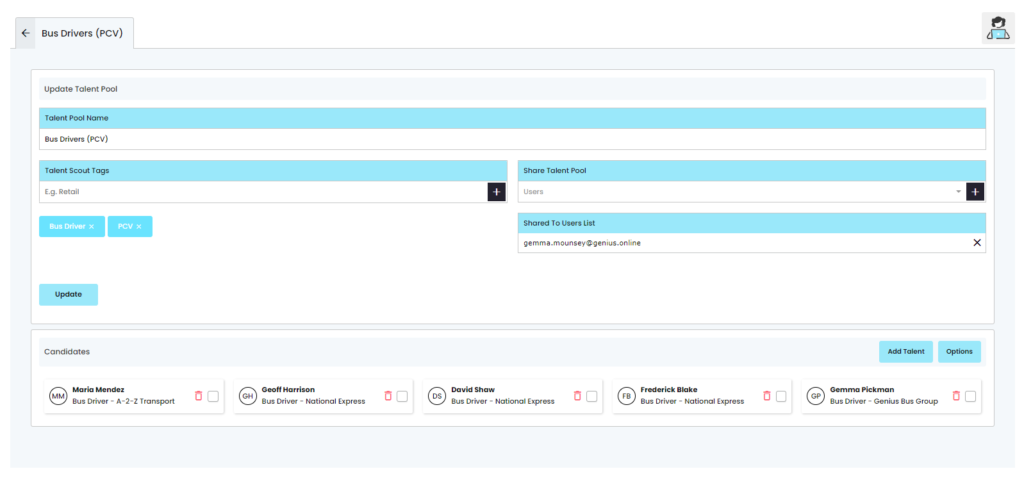
Click [Create Talent Pool] to set up a new talent pool. Enter the name for the talent pool you are creating. You then have the option to add specific skills tag i.e. Management, Retail, Customer Service etc. NOTE: Ensure you click the plus icon ‘+’ to add this skill to the talent pool criteria.
You can then select any additional users that should have access to this talent pool, by choosing their email address from the drop down list and clicking the plus icon ‘+’.
Adding a Candidate to the Talent Pool
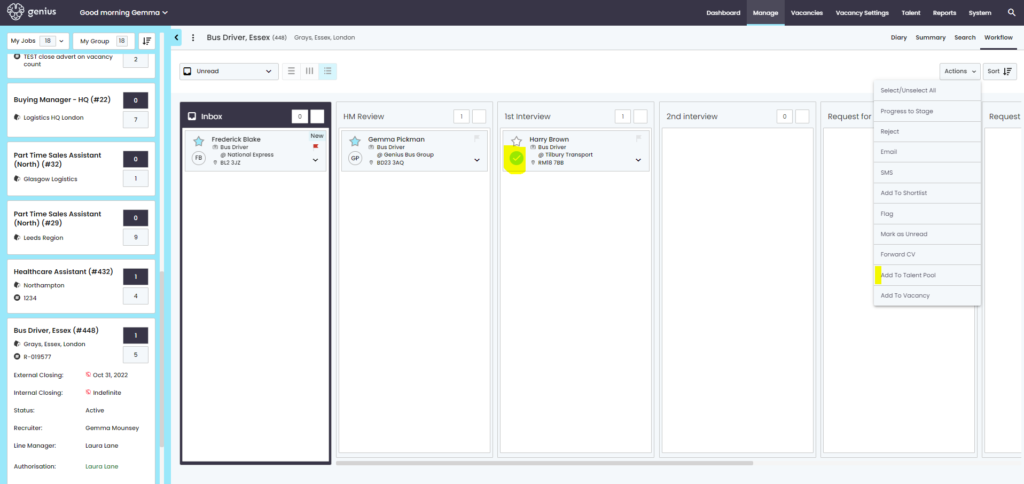
Within a vacancy, you can select a candidate, and click the 3 dots by the search box. Within this menu you can then choose to add the candidate to a talent pool.
You are then prompted to choose the desired talent pool from the drop down list;
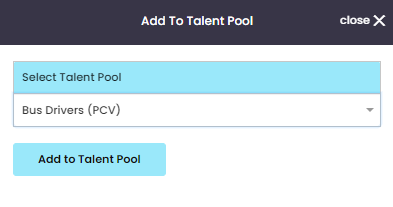
Confirm your action by clicking [Add to Talent Pool].
Candidates can also be added directly from within the talent pool itself, as shown below.
Managing Your Talent Pools
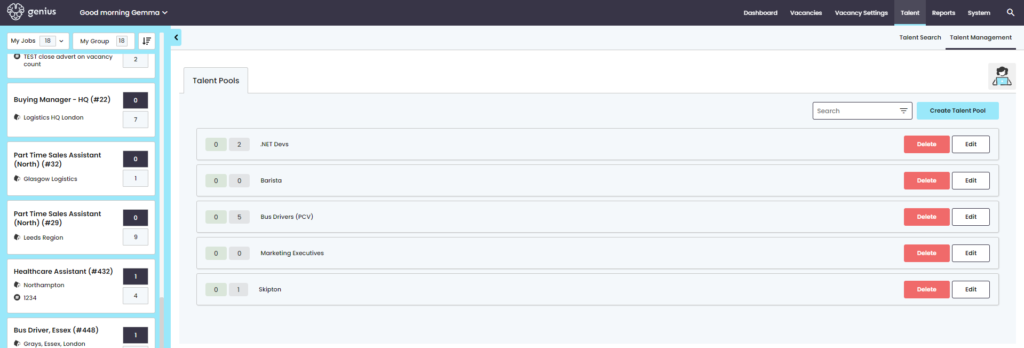
Within Talent > Talent Management – click [edit] and manage the talent pool;
You can then edit the Talent pool name, edit by removing or adding further skills tags, sharing the talent pool with user users or adding candidates.
To add a registered candidate directly to the talent pool, click [Add Talent]. You are then required to enter the candidate’s email address. If they are not already in the system, a message will show indicating this ‘Candidate not found’.
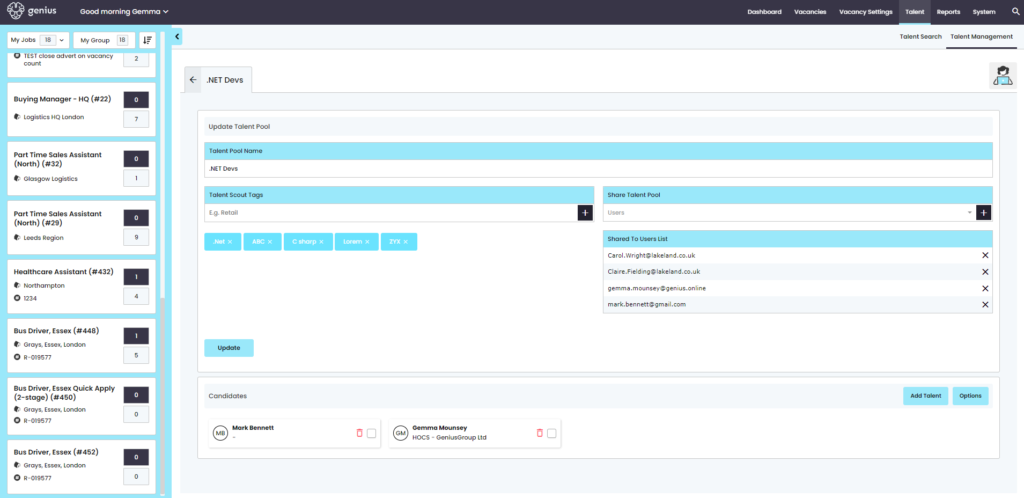
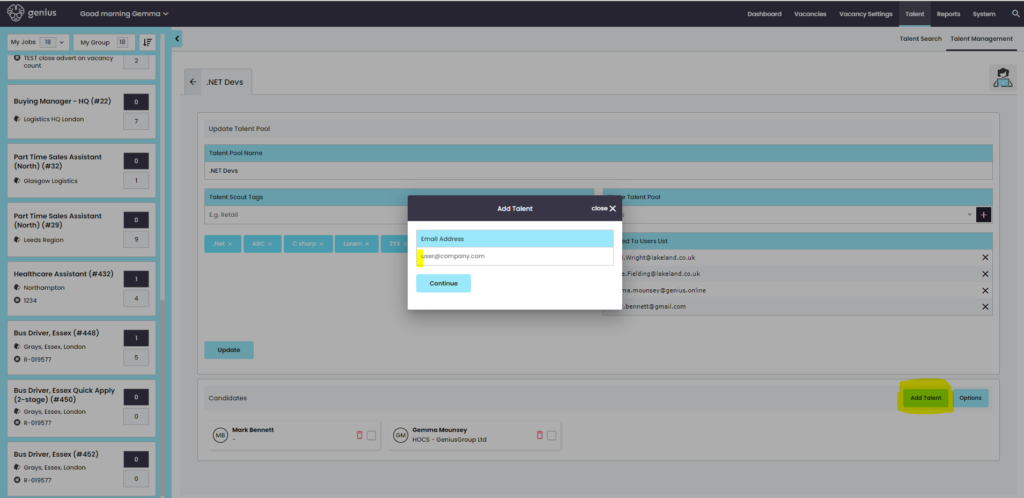
However, if the candidate is within the database already – once you have added their email address, their details will show in the Candidates section. Click [Options] to either;
- Add to Talent Pool
- Add to Vacancy
*SMS (You will only be able to send an SMS message if you have purchased an SMS text bundle)

Or to remove the candidate from the talent pool, click the bin icon next to their name and [Confirm] your action.
Adding the Candidate to a Vacancy
To add the candidate to a Vacancy, click the 3 dots to open the menu options from the vacancy you are viewing on your dashboard then click [Add Candidate].
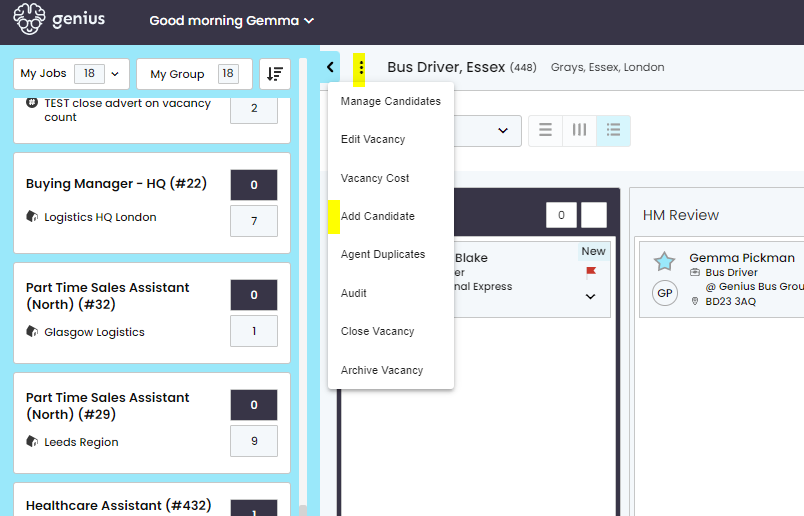
Enter their email address and fill in the pop up box with their details;
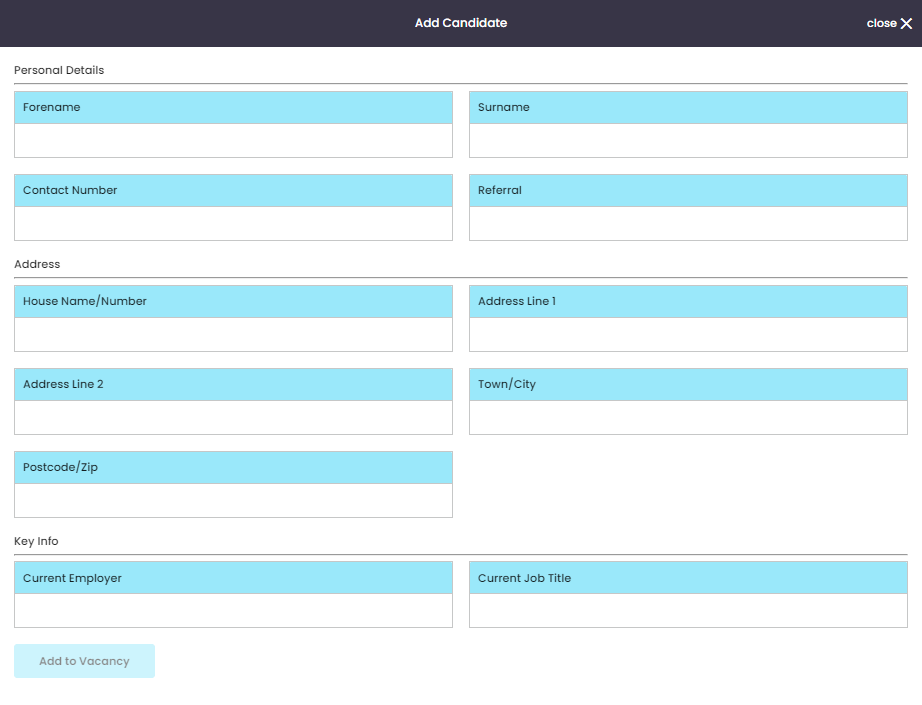
Once all the details are entered, click [Add to Vacancy] .