The vacancies tab within the control panel allows users to ‘Search’, ‘Create’, ‘View both Vacancies and Templates.
- Search Vacancies
- Create Vacancy
- View Vacancies
- Vacancy Templates
Search
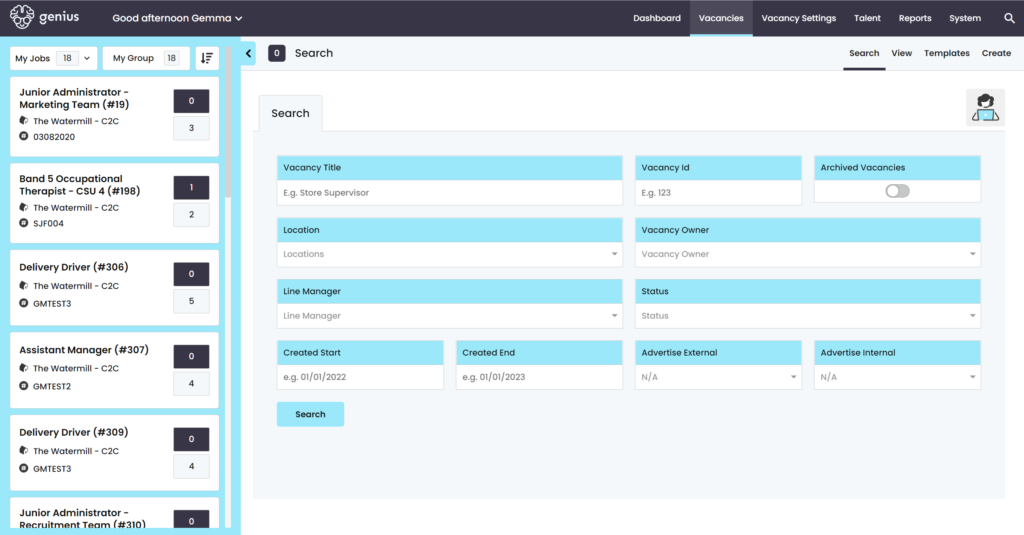
Use the filters to search and a list of any matching vacancies will be displayed underneath the filter area.
Click on the vacancy you wish to view and you will be taken into the Vacancy page.
Create
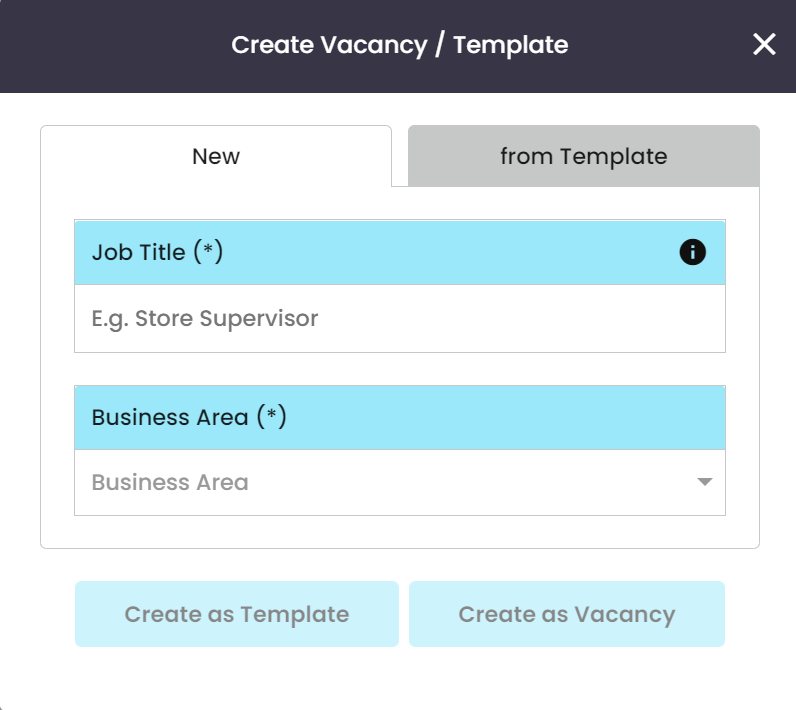
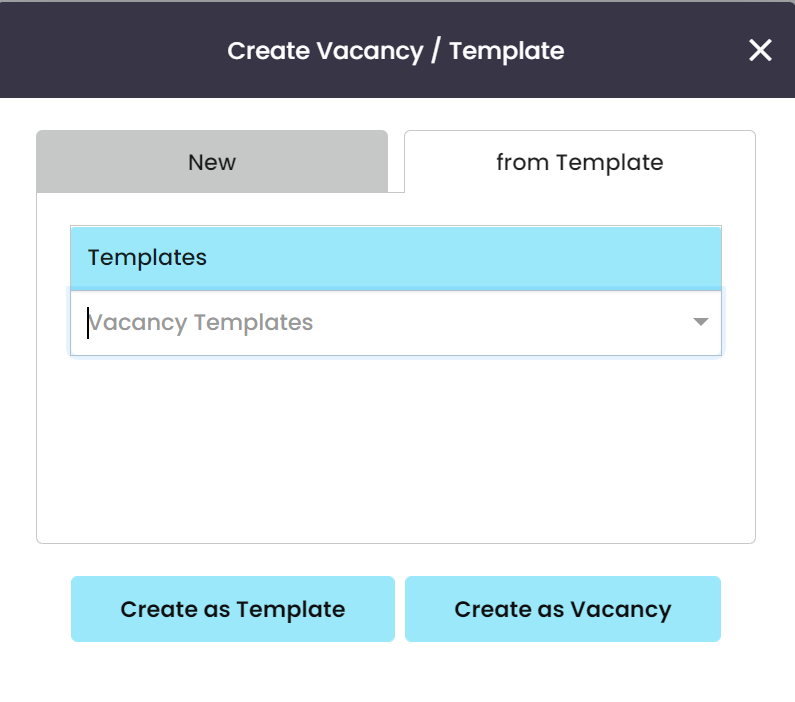
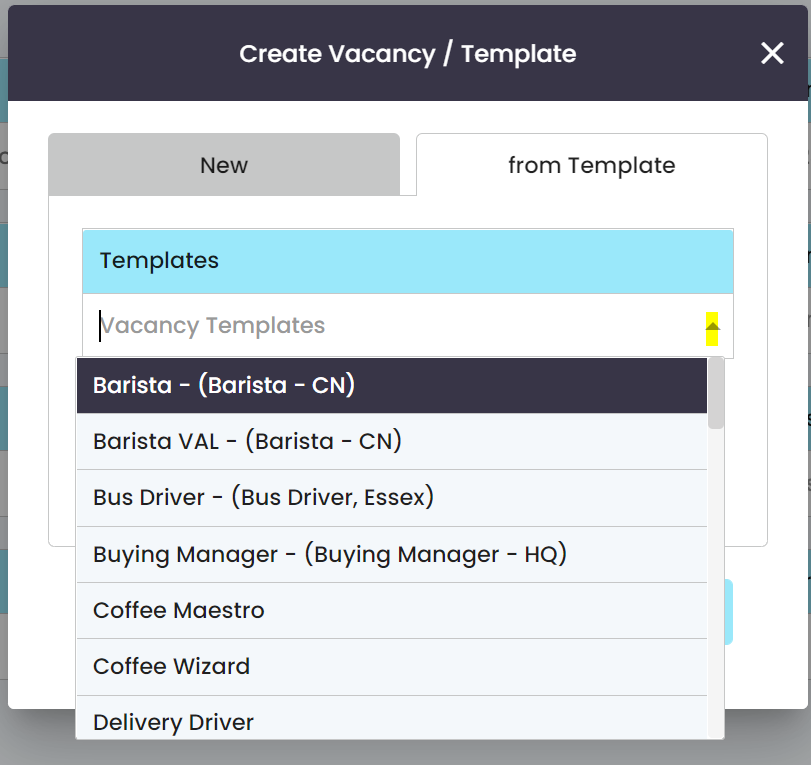
Users can ‘Create‘ a vacancy from new or from a pre-defined Template, dependant on permissions. To create a brand new vacancy use the [New] tab and follow the page layouts through to completion.
View
To view all system vacancies, use the filter drop-down which shows the following options:
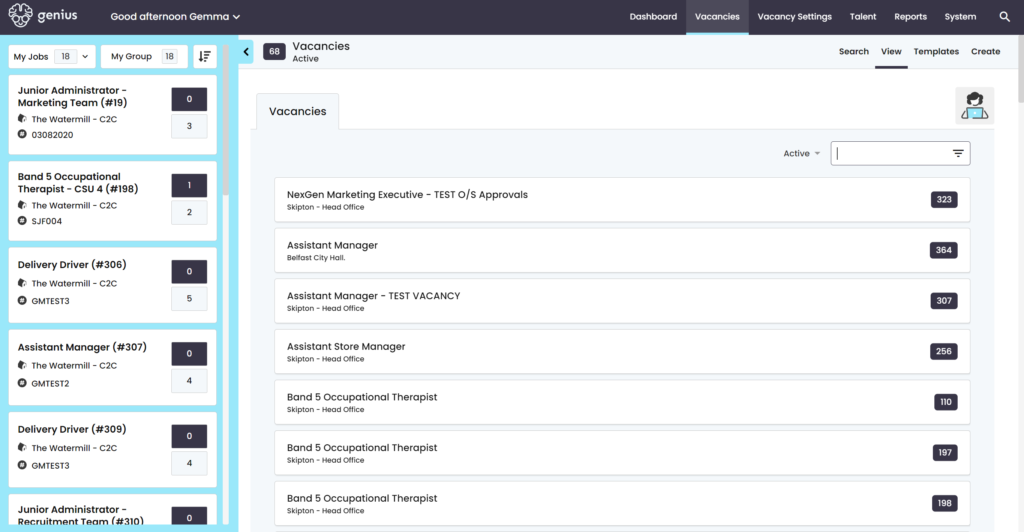
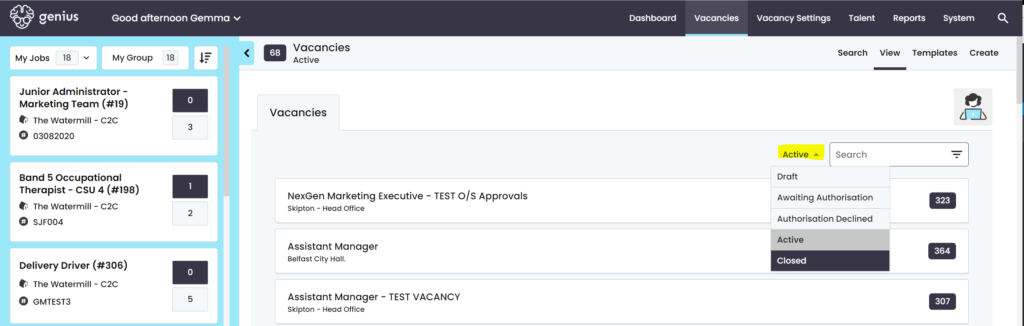
Click on the vacancy and you will be taken into the correct page.
Templates
This page lists all vacancy templates. Control Panel Users with the correct permission allocated can manage the templates suite.
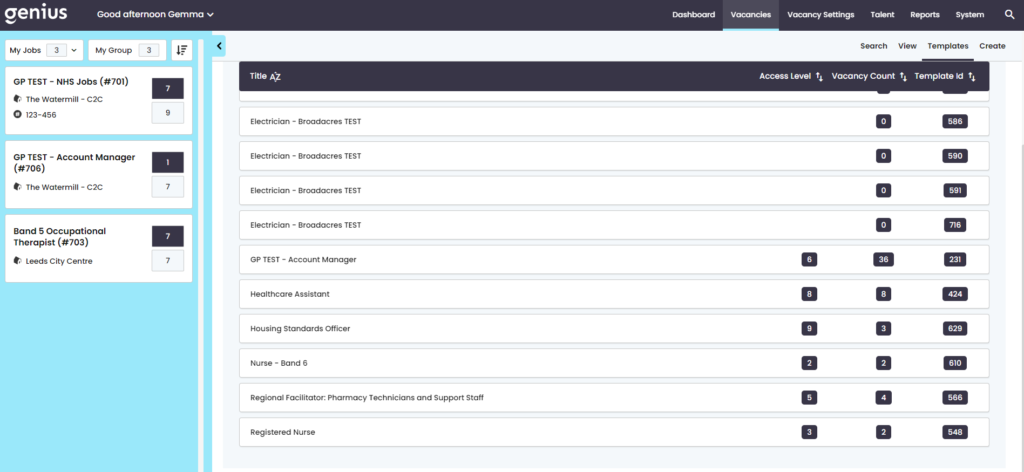
Here you can see:
Access Level: if a vacancy access level has been added (this means user with pre-determined permissions will only see the vacancies they are permitted to see, which is the level below them).
Vacancy Count: The number of times this template has been used
Template ID: The unique template ID number